> ## Documentation Index
> Fetch the complete documentation index at: https://docs.hitpayapp.com/llms.txt
> Use this file to discover all available pages before exploring further.
# Approval Workflows
> Set up multi-level approval rules, approve or reject bills, and recall submitted bills for edits.
## Overview
Every bill submitted in HitPay goes through an approval rule before it can be paid, giving you an audit trail and separation between who submits a payment and who authorises it. By default, every business starts with a single rule: all bills route to the **Owner**. Owners and Admins can customise this with rules based on amount.
## Setting up approval rules
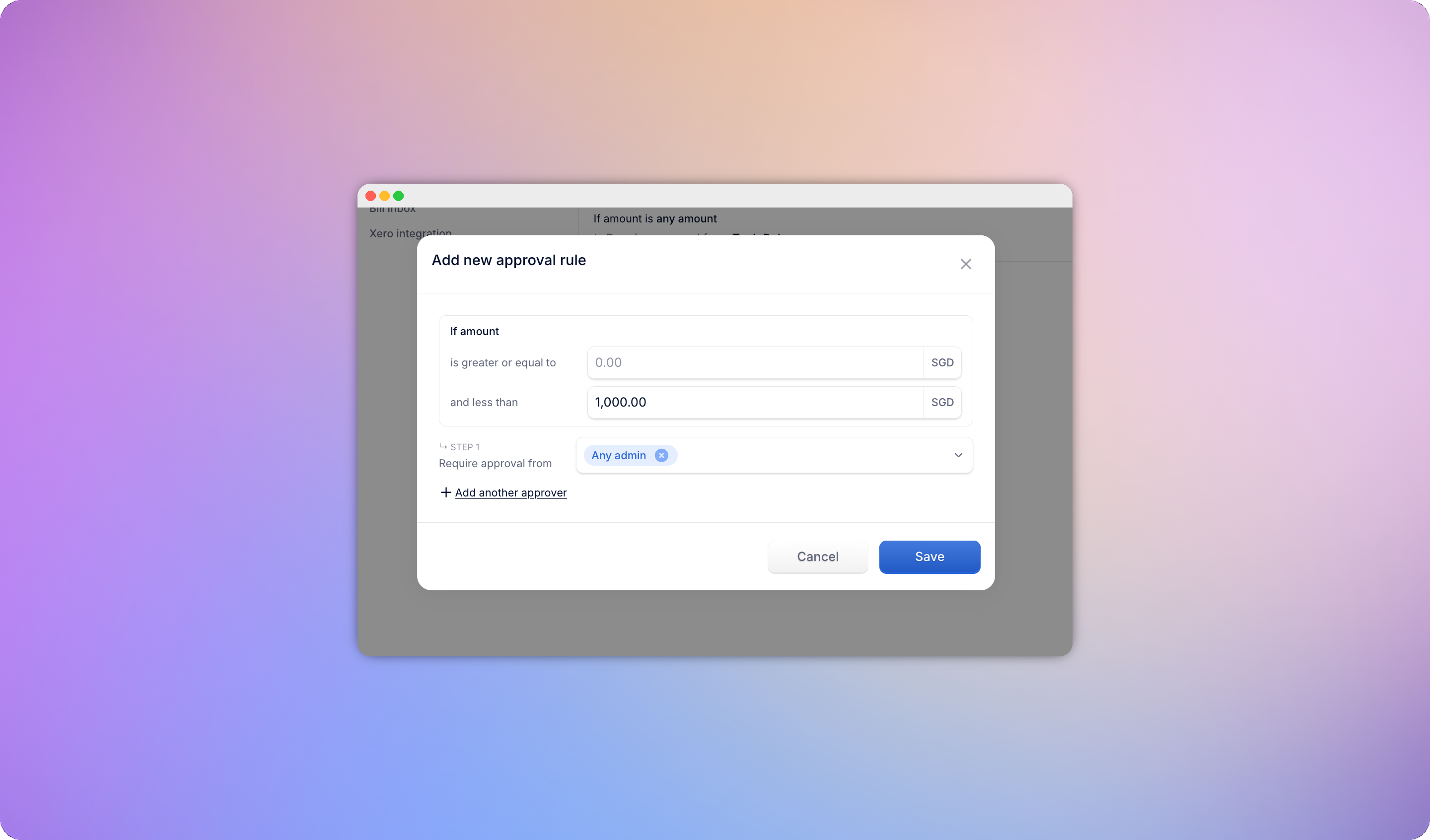
Approval rules live under **Settings > Approval Rules**. Each rule covers an amount range - for example, $0-$1,000, $1,000-$10,000, and \$10,000+ - and ranges must be mutually exclusive, with no gaps or overlaps.
Each range has one or more **sequential approval steps**, and each step needs at least one approver - either any user with the Admin role, specific named users, or both (up to 5 approvers per step; the Cashier role can't approve). A step only activates once the previous step has been approved.
Example:
```
If amount ≥ $0 and < $1,000
Require approval from: Any Admin
If amount ≥ $1,000 and < $10,000
Require approval from: Any Admin
And require approval from: Sarah Lim
If amount ≥ $10,000
Require approval from: Any Admin
And require approval from: Sarah Lim or John Doe
And require approval from: Owner
```
Foreign-currency bills are converted at the mid-market rate at submission time to determine which range applies.
Approval is opt-in: if you delete every rule, bills skip approval entirely and go straight to **Approved** once submitted.
 ### Self-approval skip
If the person submitting a bill is also an assigned approver on a step, that entire step is skipped automatically - the bill advances to the next step they're not part of. If they're the only approver across every remaining step, the bill moves straight through to its next stage without requiring a separate approval.
## Approving or rejecting a bill
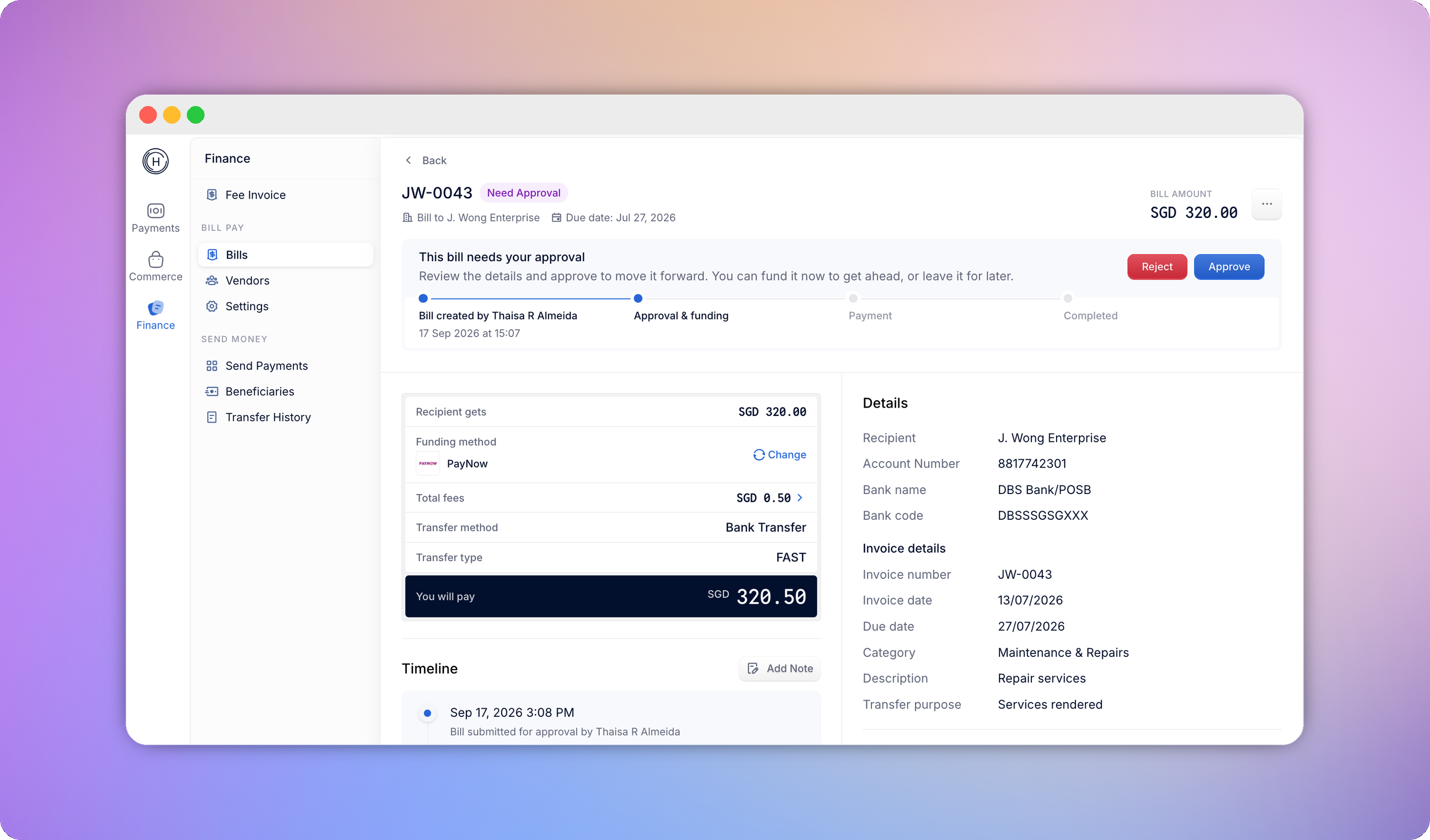
Anyone assigned as an approver sees the bills currently waiting on them, and is notified whenever a bill enters a step they're responsible for.
* **Approve** - the bill advances to the next step.
* **Reject** - requires a reason. The bill moves to **Rejected**, any funds already collected are returned to your HitPay Balance, and the submitter is notified.
### Self-approval skip
If the person submitting a bill is also an assigned approver on a step, that entire step is skipped automatically - the bill advances to the next step they're not part of. If they're the only approver across every remaining step, the bill moves straight through to its next stage without requiring a separate approval.
## Approving or rejecting a bill
Anyone assigned as an approver sees the bills currently waiting on them, and is notified whenever a bill enters a step they're responsible for.
* **Approve** - the bill advances to the next step.
* **Reject** - requires a reason. The bill moves to **Rejected**, any funds already collected are returned to your HitPay Balance, and the submitter is notified.
 ## Approving without paying
An Owner can approve a bill without funding it right away. The bill moves to **Approved** with the transfer still unfunded, so you can sign off for audit purposes and decide later when to actually send the money. Fund it whenever you're ready using **Fund Transfer**
Once a bill's funds are collected, approval must be completed within **3 days**. If it isn't, HitPay automatically returns the collected funds to your HitPay Balance and the bill moves to **Expired**. See [If a bill isn't funded or paid in time](/finance/bill-pay/payments-scheduling#if-a-bill-isnt-funded-or-paid-in-time).
## Recalling a bill
* **Pending** bills are directly editable - no recall needed.
* **Need Approval** or **Approved** bills must be recalled before they can be edited. Recalling clears the approval chain and returns the bill to **Pending**.
Only the original submitter or the Owner can recall a bill - approvers can only approve or reject. You can't recall a bill once its funds have been collected, or once it's **Processing**, **Completed**, **Rejected**, or **Canceled**.
After editing a recalled bill, resubmitting re-evaluates it against your current approval rules - if the amount changed, it may now match a different rule with different approvers.
## Approving without paying
An Owner can approve a bill without funding it right away. The bill moves to **Approved** with the transfer still unfunded, so you can sign off for audit purposes and decide later when to actually send the money. Fund it whenever you're ready using **Fund Transfer**
Once a bill's funds are collected, approval must be completed within **3 days**. If it isn't, HitPay automatically returns the collected funds to your HitPay Balance and the bill moves to **Expired**. See [If a bill isn't funded or paid in time](/finance/bill-pay/payments-scheduling#if-a-bill-isnt-funded-or-paid-in-time).
## Recalling a bill
* **Pending** bills are directly editable - no recall needed.
* **Need Approval** or **Approved** bills must be recalled before they can be edited. Recalling clears the approval chain and returns the bill to **Pending**.
Only the original submitter or the Owner can recall a bill - approvers can only approve or reject. You can't recall a bill once its funds have been collected, or once it's **Processing**, **Completed**, **Rejected**, or **Canceled**.
After editing a recalled bill, resubmitting re-evaluates it against your current approval rules - if the amount changed, it may now match a different rule with different approvers.