> ## Documentation Index
> Fetch the complete documentation index at: https://docs.hitpayapp.com/llms.txt
> Use this file to discover all available pages before exploring further.
# Vendors
> Maintain a vendor directory, link bank accounts, and import vendors in bulk.
## Overview
A vendor is a supplier or contractor record that groups everything you pay them for in one place - contact details, linked bank accounts, spend history, and every bill you've paid them. Instead of a vendor appearing as several disconnected beneficiaries because they have multiple bank accounts (for example, an SGD account and a USD account), Bill Pay links them all under a single vendor profile.
## Vendor directory
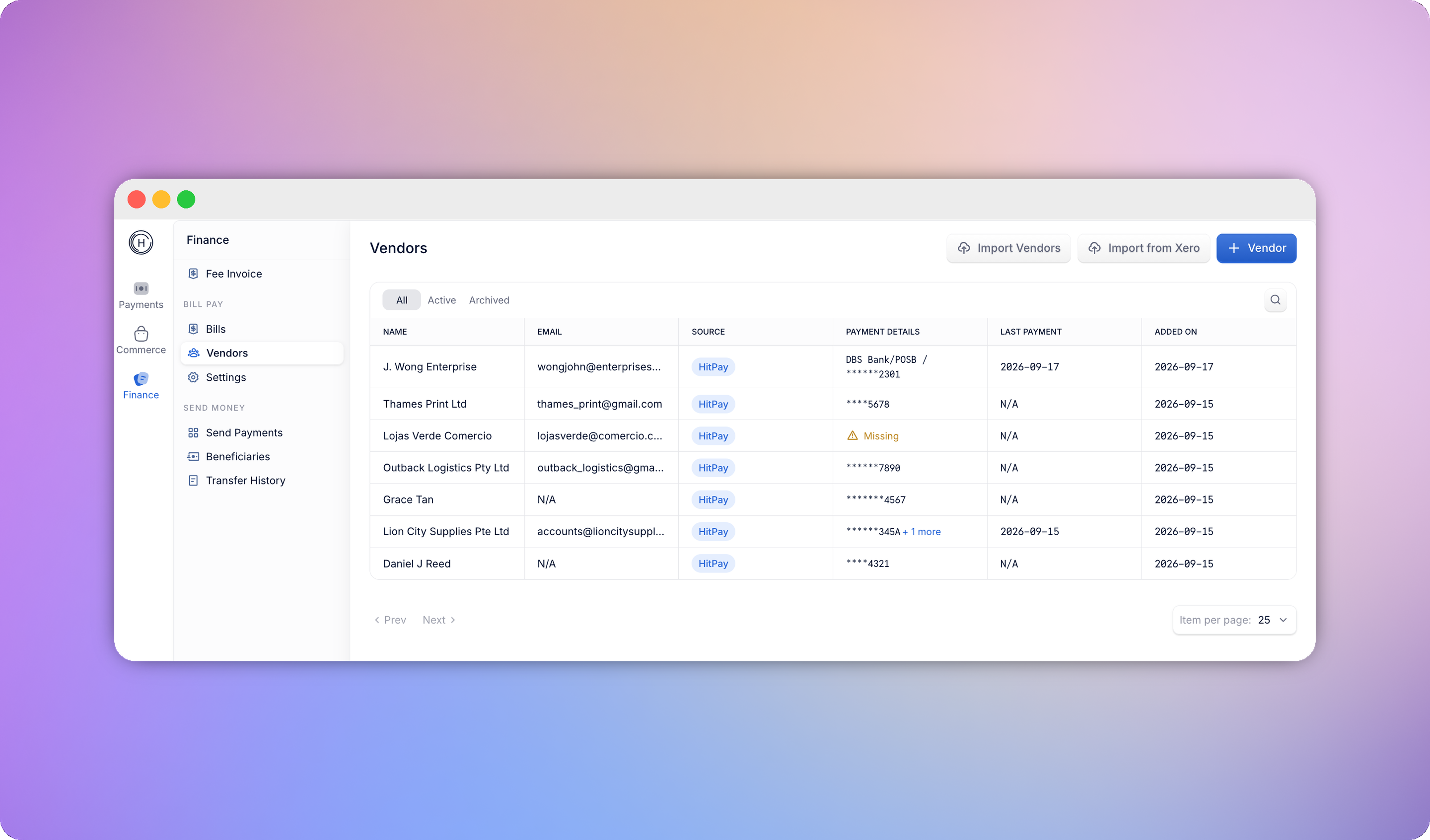
Go to **Vendors** in the Bill Pay sidebar to see every vendor in a table: name, email, number of bills, payment details (masked account number, or a "Missing" warning if none is linked), last payment date, and when the vendor was added.
* Search by name, email, or tax ID
* Filter by status: **All**, **Active**, or **Archived**
* Sort by clicking any column header
* Click a row to open that vendor's profile
If you have no vendors yet, they're created automatically the first time you create a bill for a new supplier - or you can add one manually.
 ## Vendor profile
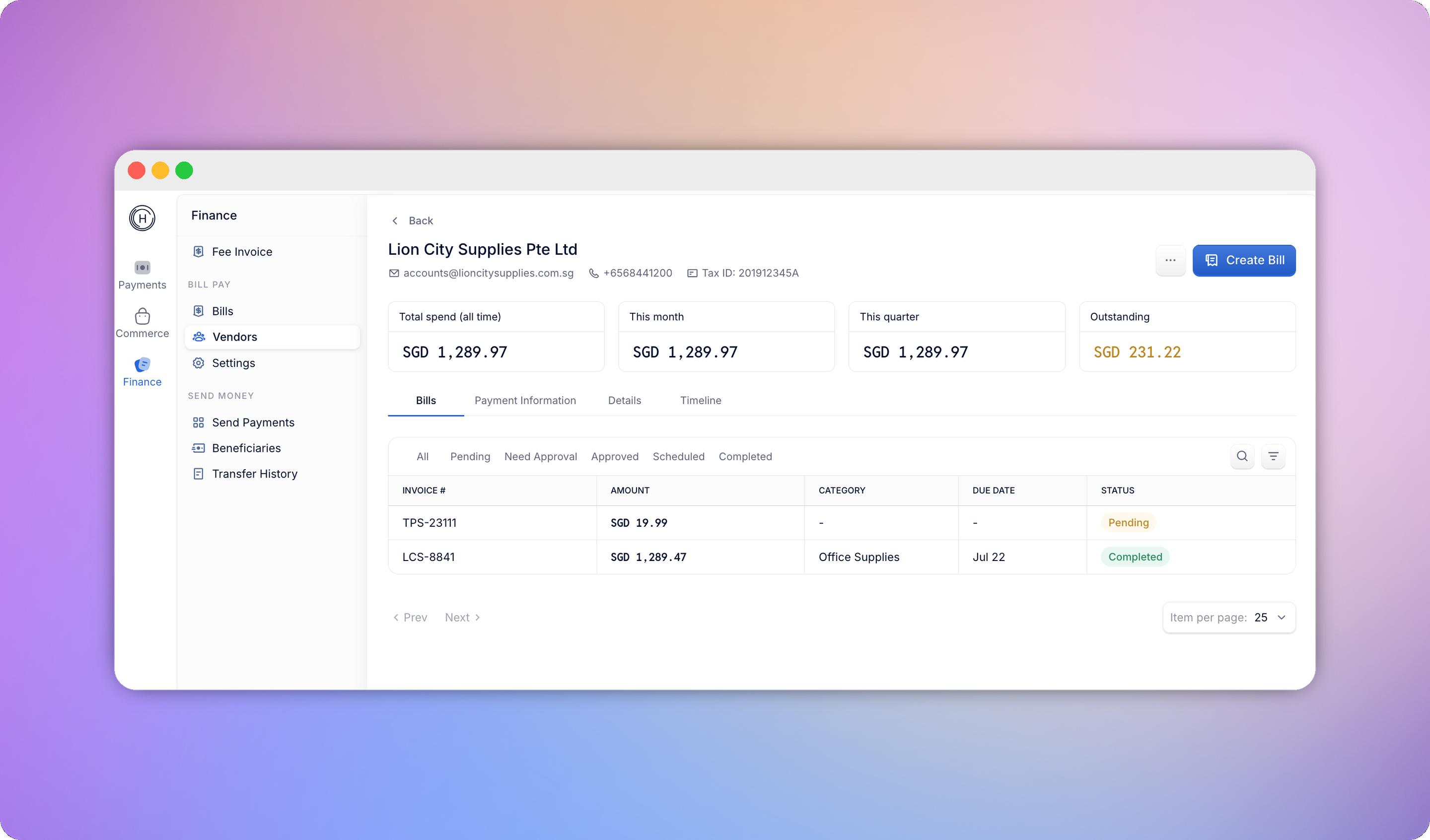
Each vendor profile shows:
* **Header** - name, entity type, status, email, and phone
* **Summary cards** - Total Spend (all-time), This Month, This quarter and Outstanding. Amounts are grouped by home currency.
* **Bills** tab - every bill for this vendor, filterable by status.
* **Payment Information** tab - linked bank accounts, with the option to add a new one, set a primary account, or unlink an existing one
* **Details** tab - editable legal name, entity type, tax ID, email, phone, and address
* **Timeline** tab - a chronological activity log of everything that's happened on this vendor (creation, edits, bank account changes, payments)
## Vendor profile
Each vendor profile shows:
* **Header** - name, entity type, status, email, and phone
* **Summary cards** - Total Spend (all-time), This Month, This quarter and Outstanding. Amounts are grouped by home currency.
* **Bills** tab - every bill for this vendor, filterable by status.
* **Payment Information** tab - linked bank accounts, with the option to add a new one, set a primary account, or unlink an existing one
* **Details** tab - editable legal name, entity type, tax ID, email, phone, and address
* **Timeline** tab - a chronological activity log of everything that's happened on this vendor (creation, edits, bank account changes, payments)
 ## Adding and managing vendors
To add a vendor manually, go to **Vendors > Add Vendor** and fill in:
| Field | Required |
| ---------- | -------- |
| Legal Name | Yes |
| Email | No |
| Tax ID | No |
| Phone | No |
| Address | No |
| Notes | No |
**Archiving** a vendor hides it from the default list and bill-creation dropdowns without affecting any of its existing bills or bank accounts. Filter by **Archived** to find it again, and unarchive it from the vendor profile at any time.
## Linking a bank account
From a vendor's **Payment Information** tab, click **Add Payment Information** and enter the country, transfer method, currency, account holder name, and account number.
If a vendor has more than one bank account, click **Set as Primary** on the one that should be pre-selected automatically when you create new bills for them. Deleting a payment method only unlinks it from the vendor - it doesn't delete the underlying bank account.
## Vendor matching during bill creation
When you upload a bill, HitPay tries to match it to an existing vendor automatically. If a match is found, you'll see "Matched to `{vendor name}`" with the option to change it. If not, you can search your existing vendors or create a new one inline, with the name pre-filled from OCR where available.
## Bulk vendor import
If you're migrating from a spreadsheet or another platform, import your whole vendor list at once instead of adding them one by one.
Go to **Vendors > Import Vendors** and choose:
* **CSV Upload** - for vendors kept in a spreadsheet
* **Sync from Accounting** - for Xero (see [Xero Integration](/finance/bill-pay/xero-integration))
## Adding and managing vendors
To add a vendor manually, go to **Vendors > Add Vendor** and fill in:
| Field | Required |
| ---------- | -------- |
| Legal Name | Yes |
| Email | No |
| Tax ID | No |
| Phone | No |
| Address | No |
| Notes | No |
**Archiving** a vendor hides it from the default list and bill-creation dropdowns without affecting any of its existing bills or bank accounts. Filter by **Archived** to find it again, and unarchive it from the vendor profile at any time.
## Linking a bank account
From a vendor's **Payment Information** tab, click **Add Payment Information** and enter the country, transfer method, currency, account holder name, and account number.
If a vendor has more than one bank account, click **Set as Primary** on the one that should be pre-selected automatically when you create new bills for them. Deleting a payment method only unlinks it from the vendor - it doesn't delete the underlying bank account.
## Vendor matching during bill creation
When you upload a bill, HitPay tries to match it to an existing vendor automatically. If a match is found, you'll see "Matched to `{vendor name}`" with the option to change it. If not, you can search your existing vendors or create a new one inline, with the name pre-filled from OCR where available.
## Bulk vendor import
If you're migrating from a spreadsheet or another platform, import your whole vendor list at once instead of adding them one by one.
Go to **Vendors > Import Vendors** and choose:
* **CSV Upload** - for vendors kept in a spreadsheet
* **Sync from Accounting** - for Xero (see [Xero Integration](/finance/bill-pay/xero-integration))
 ### CSV upload
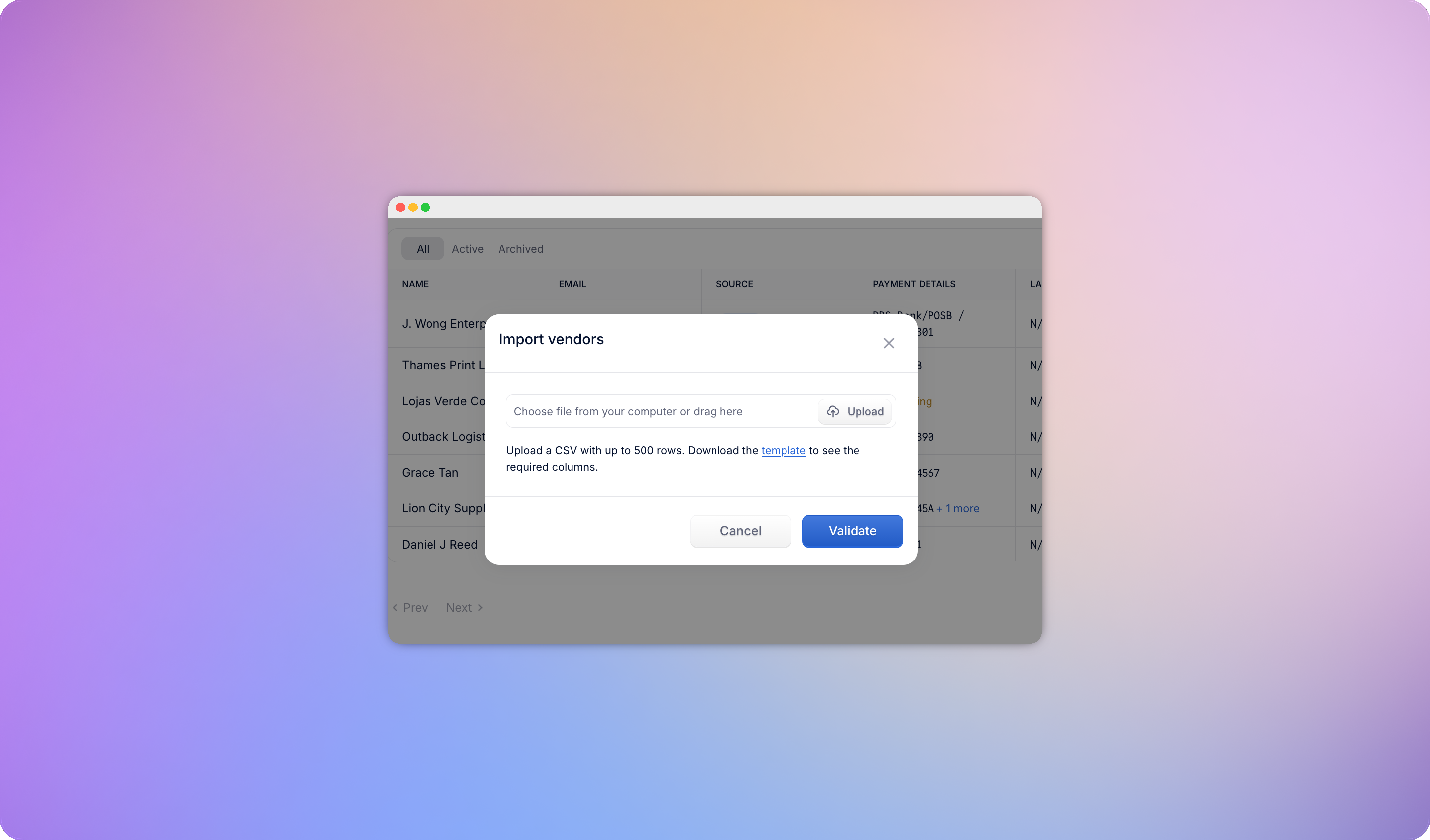
Download the official template. It includes vendor fields (name, email, phone, tax ID, address) and bank account fields (country, currency, account holder name, account number, and a routing code where the destination country requires one).
* Maximum **500 rows** per upload
* Rows are validated before anything is created; invalid rows are flagged with the specific error (for example, an unrecognised country code or a badly formatted phone number)
* You can fix and re-upload, or proceed - valid rows import while flagged rows are skipped and available to re-download
### How duplicates are handled
The import only ever creates vendors and bank accounts - it never edits existing vendor details, even if the file has different values.
| Situation | What happens |
| -------------------------------------------------------------------------------- | ------------------------------------------------------------------ |
| The exact same bank account (country + currency + account number) already exists | Row is skipped - already imported. Makes re-uploads safe. |
| Exactly one existing vendor matches the name | The bank account is added to that vendor. |
| More than one existing vendor matches the name | Row is flagged as ambiguous and skipped - you resolve it manually. |
| No match | A new vendor is created with its bank account. |
## Xero vendor sync
If you connect Xero, existing suppliers can be imported as vendors and new HitPay vendors are pushed to Xero automatically. See [Xero Integration](/finance/bill-pay/xero-integration) for how vendor sync works.
### CSV upload
Download the official template. It includes vendor fields (name, email, phone, tax ID, address) and bank account fields (country, currency, account holder name, account number, and a routing code where the destination country requires one).
* Maximum **500 rows** per upload
* Rows are validated before anything is created; invalid rows are flagged with the specific error (for example, an unrecognised country code or a badly formatted phone number)
* You can fix and re-upload, or proceed - valid rows import while flagged rows are skipped and available to re-download
### How duplicates are handled
The import only ever creates vendors and bank accounts - it never edits existing vendor details, even if the file has different values.
| Situation | What happens |
| -------------------------------------------------------------------------------- | ------------------------------------------------------------------ |
| The exact same bank account (country + currency + account number) already exists | Row is skipped - already imported. Makes re-uploads safe. |
| Exactly one existing vendor matches the name | The bank account is added to that vendor. |
| More than one existing vendor matches the name | Row is flagged as ambiguous and skipped - you resolve it manually. |
| No match | A new vendor is created with its bank account. |
## Xero vendor sync
If you connect Xero, existing suppliers can be imported as vendors and new HitPay vendors are pushed to Xero automatically. See [Xero Integration](/finance/bill-pay/xero-integration) for how vendor sync works.