> ## Documentation Index
> Fetch the complete documentation index at: https://docs.hitpayapp.com/llms.txt
> Use this file to discover all available pages before exploring further.
# Xero Integration
> Sync vendors and bills with Xero and automatically reconcile payments.
## Overview
Connect Bill Pay to Xero to keep your vendors, bills, and payments in sync without double entry. Once connected, you can:
1. Import your existing Xero suppliers as HitPay vendors
2. Have new HitPay vendors pushed to Xero automatically
3. Map your HitPay bill categories to your Xero chart of accounts
4. Have approved bills appear in Xero as bills, with the right vendor and account code
5. Have payments recorded in Xero automatically once a bill is paid
## Connecting Xero
Go to **Settings > Connections** and click **Connect BillPay Xero** to start the OAuth flow.
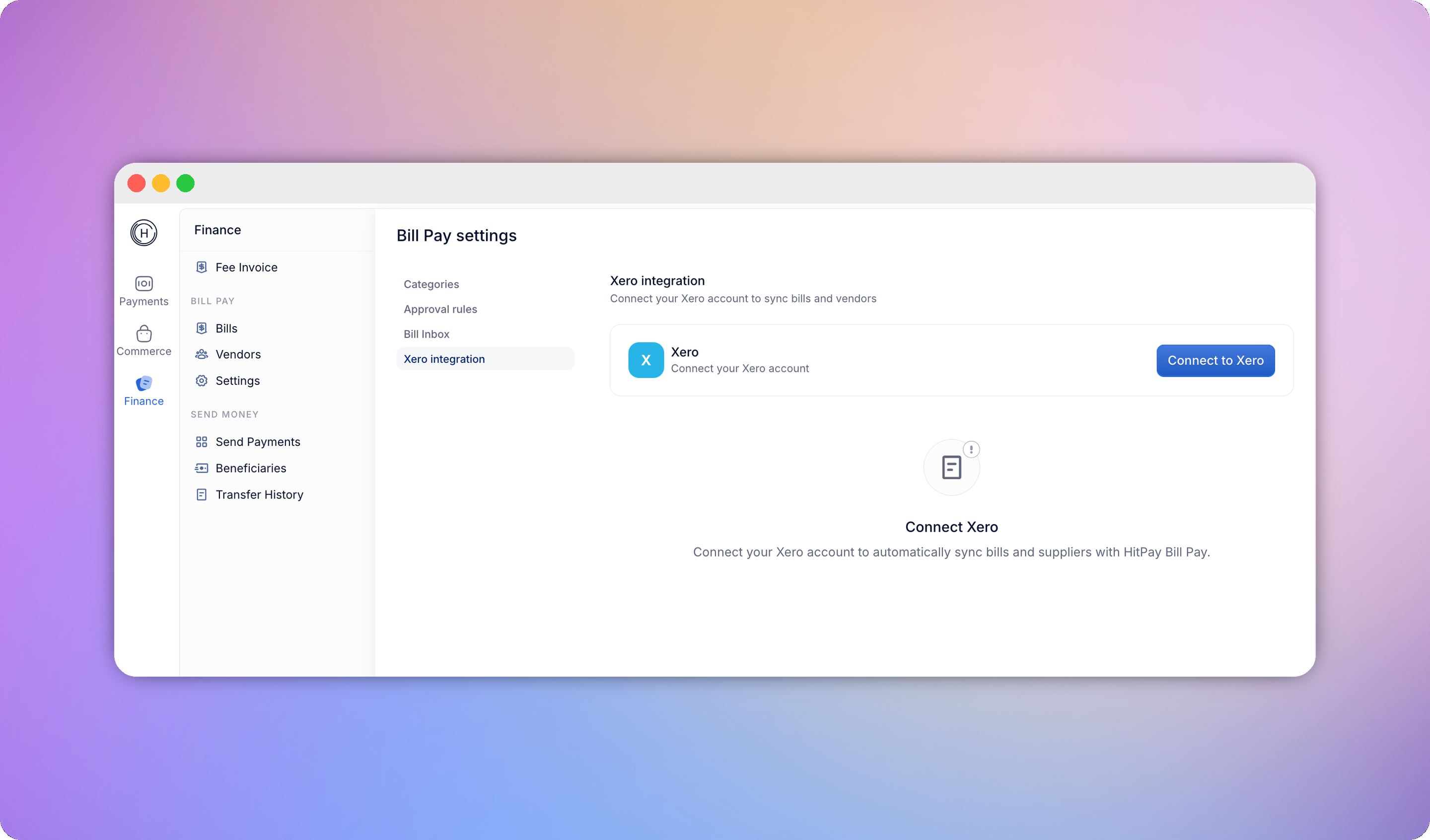 Once connected, HitPay begins syncing your accounts and contacts in the background, and you'll be prompted to import your existing Xero suppliers - or skip and import them later from the Vendors page.
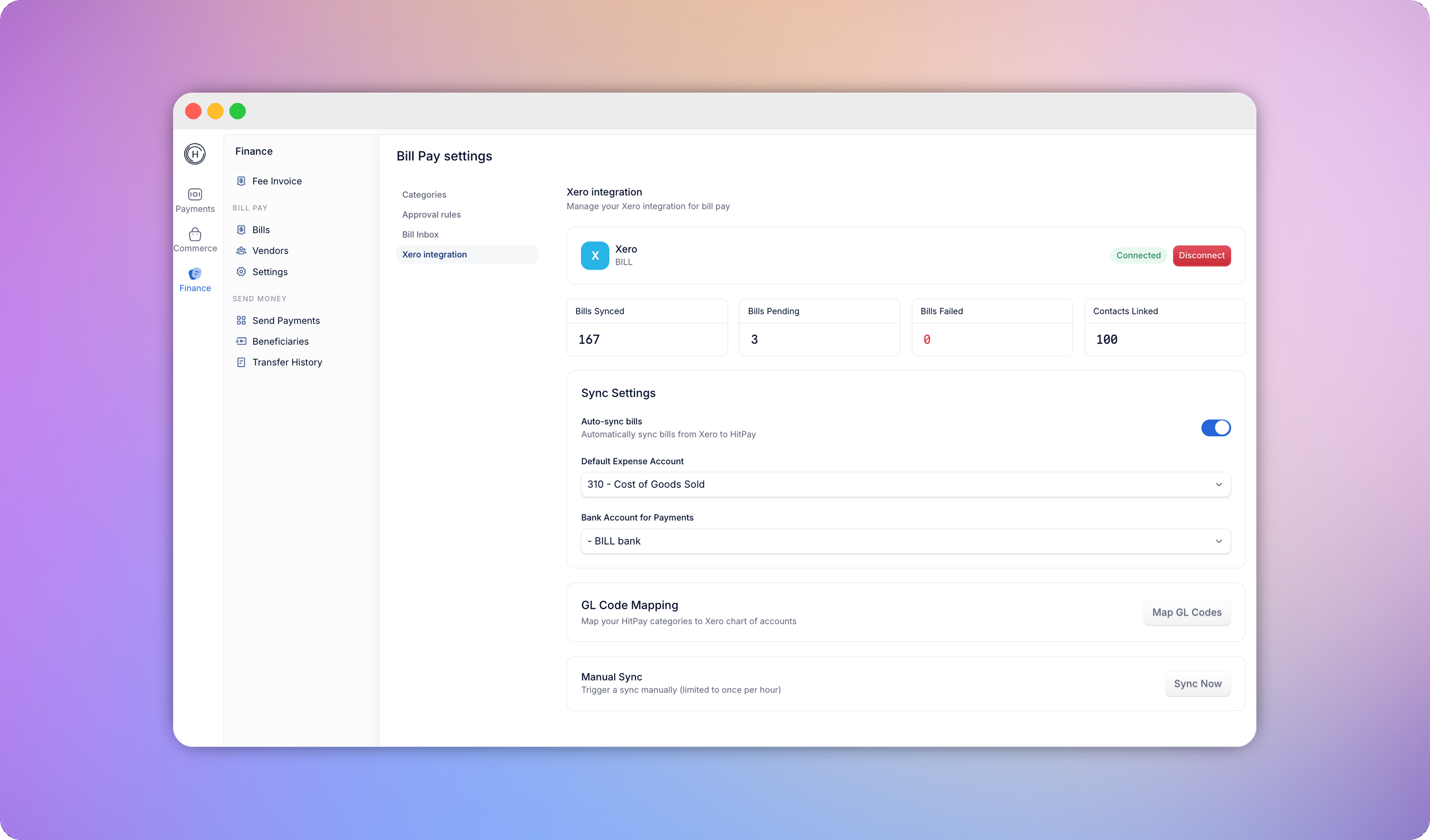
You'll also be asked to map your HitPay categories to Xero expense accounts (auto-suggested by name match where possible), and can optionally set a default expense account for anything unmapped.
Once connected, HitPay begins syncing your accounts and contacts in the background, and you'll be prompted to import your existing Xero suppliers - or skip and import them later from the Vendors page.
You'll also be asked to map your HitPay categories to Xero expense accounts (auto-suggested by name match where possible), and can optionally set a default expense account for anything unmapped.
 ## Vendor sync
* **Vendors imported from Xero are read-only in HitPay.** To change one, edit it in Xero and re-sync.
* **Vendors created in HitPay push to Xero automatically** on create and update. If a Xero contact with the same name already exists, HitPay links to it instead of creating a duplicate.
* Only Xero contacts marked as suppliers are imported - customer-only contacts aren't relevant to Bill Pay.
See [Vendors](/finance/bill-pay/vendors) for how the vendor directory works day-to-day, and [Bulk vendor import](/finance/bill-pay/vendors#bulk-vendor-import) if you'd rather import via CSV instead of syncing from Xero.
## Bill & payment sync
When a bill is approved, HitPay pushes it to Xero as a bill using the vendor and the GL account mapped to its category, automatically creating the vendor contact in Xero first if it doesn't exist yet. When that bill is paid in HitPay, the corresponding Xero bill is automatically marked as paid - there's nothing to reconcile manually.
Sync status (synced, pending, or error) is shown against each bill and vendor. If a sync fails, HitPay retries automatically before asking you to retry manually.
## Disconnecting
You can turn Xero sync off at any time from **Settings > Connections**. Disabling it stops future syncing but doesn't change anything already recorded in Xero.
## Vendor sync
* **Vendors imported from Xero are read-only in HitPay.** To change one, edit it in Xero and re-sync.
* **Vendors created in HitPay push to Xero automatically** on create and update. If a Xero contact with the same name already exists, HitPay links to it instead of creating a duplicate.
* Only Xero contacts marked as suppliers are imported - customer-only contacts aren't relevant to Bill Pay.
See [Vendors](/finance/bill-pay/vendors) for how the vendor directory works day-to-day, and [Bulk vendor import](/finance/bill-pay/vendors#bulk-vendor-import) if you'd rather import via CSV instead of syncing from Xero.
## Bill & payment sync
When a bill is approved, HitPay pushes it to Xero as a bill using the vendor and the GL account mapped to its category, automatically creating the vendor contact in Xero first if it doesn't exist yet. When that bill is paid in HitPay, the corresponding Xero bill is automatically marked as paid - there's nothing to reconcile manually.
Sync status (synced, pending, or error) is shown against each bill and vendor. If a sync fails, HitPay retries automatically before asking you to retry manually.
## Disconnecting
You can turn Xero sync off at any time from **Settings > Connections**. Disabling it stops future syncing but doesn't change anything already recorded in Xero.