Action required by 31 May 2026. This affects HitPay users who accept card payments and are based OUTSIDE Singapore, Malaysia, the Philippines, and Indonesia. If you do not complete the migration before this date, your ability to accept card payments may be interrupted.

What is changing?

HitPay is discontinuing support for Stripe Custom Connect for accounts that enabled Cards outside of Singapore, Malaysia, Phillipines and Indonesia. Merchants affected would need to reconnect Stripe Standard Connect within the HitPay dashboard to continue using cards with HitPay.

What needs to be done before 31 May 2026?

1

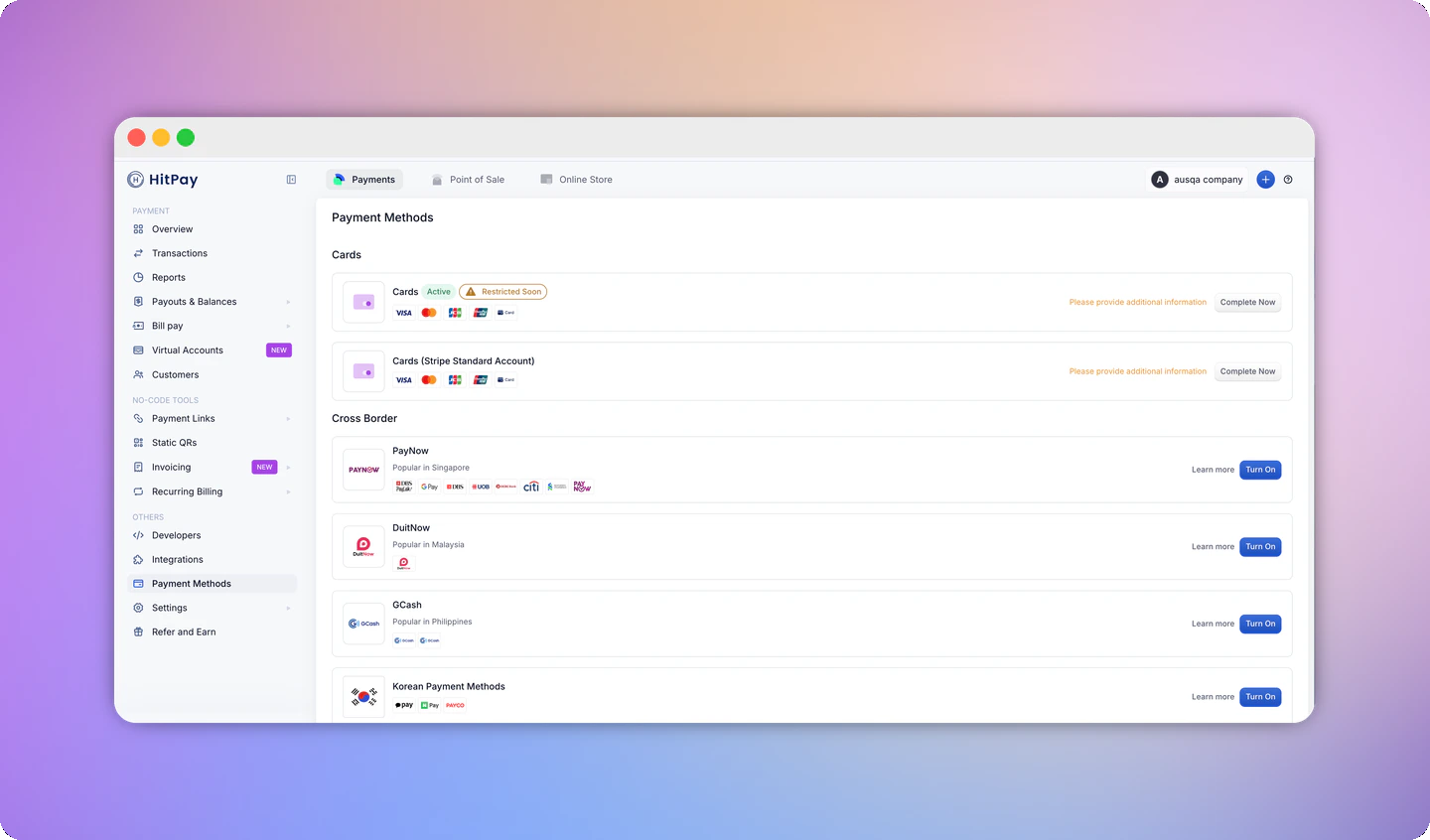
Go to Payment Methods

Log in to your HitPay Dashboard and go to Settings → Payment Methods. You will see a Cards (Stripe Standard Account) option — click on it to begin.Payment Methods page showing Cards and Cards (Stripe Standard Account)
2

Connect your Stripe account

The Stripe onboarding page will open. You can either:
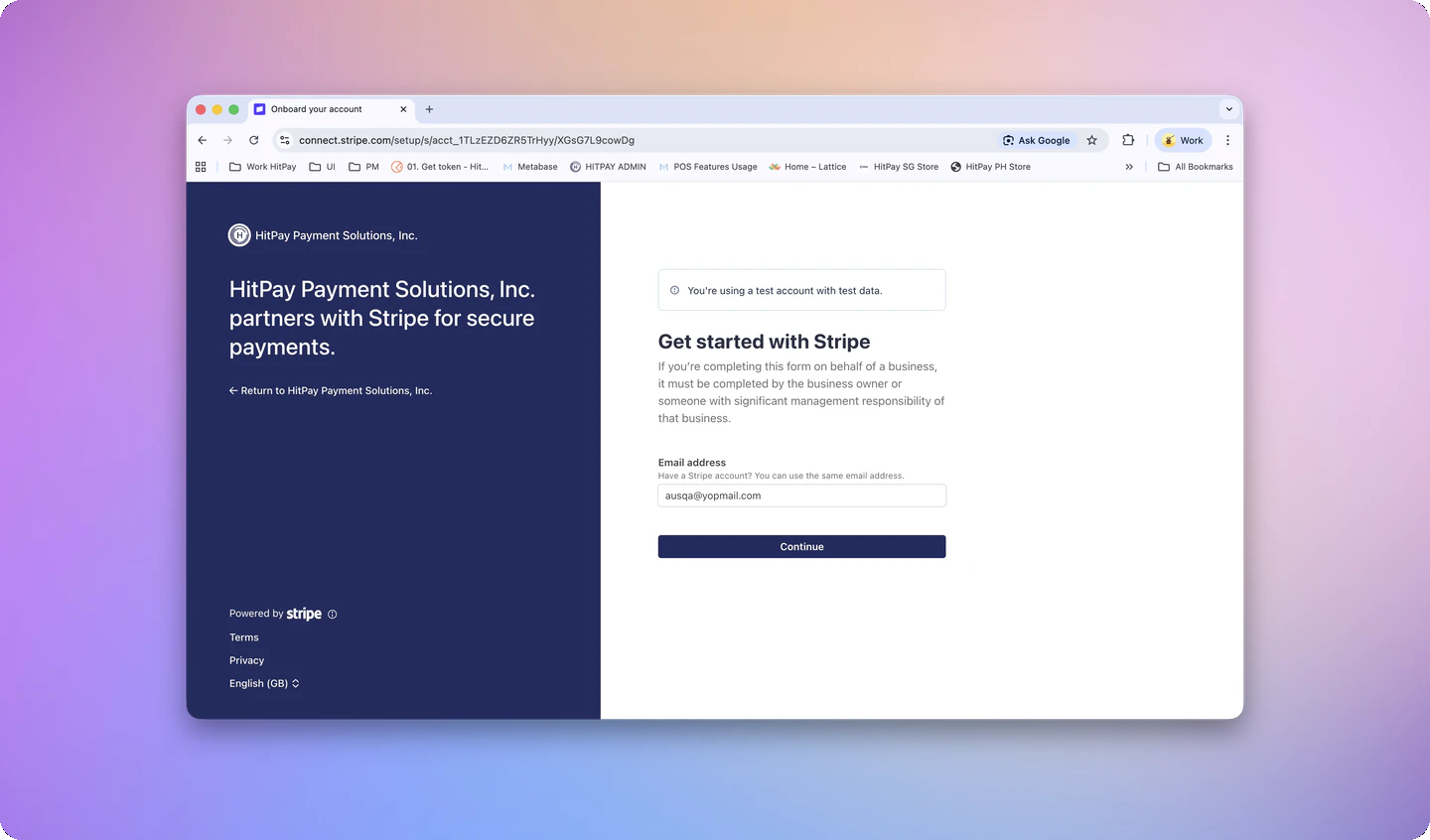
  • Connect an existing Stripe account using your existing Stripe email, or
  • Create a new Stripe account with a new email address.
Follow the prompts to complete the connection.Stripe onboarding page showing Get started with Stripe
3

Complete the onboarding form

Fill in your business details as requested by Stripe. This may include business information, identity verification, and banking details. Complete all steps to activate your card payment capability.
4

Confirm your account is active

Once done, you will see Stripe Standard Connect shown as active in your Payment Methods page. When you log in to your Stripe Dashboard, you will see the HitPay logo alongside your company logo — this confirms your Standard account is successfully linked to HitPay.Stripe Dashboard showing HitPay Payment Solutions under the account namePayment Methods page showing Cards (Stripe Standard Account) as Active and legacy Cards as Inactive

The process typically takes a few minutes. You will see a confirmation once your account is successfully migrated.

What are the actionables for terminal users?

WiFi Terminals ⚠️ Action required After completing your Stripe Standard Connect migration, you must re-register all WiFi terminals:
  1. Go to Point of Sale → Card Terminals in your HitPay Dashboard.
  2. For each WiFi terminal, open the terminal details.
  3. Select Delete Terminal, then Register Terminal to re-add it.
  4. Repeat this process for every WiFi terminal.
Important: WiFi terminals will not work until you complete this re-registration process. Tap to Pay ⚠️ Action may be required After migration, you may need to reconfigure Tap to Pay:
  • Your Tap to Pay functionality may need to be re-enabled on your new Standard account.
  • Open your HitPay App > More > Terminal > Forget Terminal
  • Reinitiate Tap to Pay pairing
Bluetooth Terminals — no action needed Bluetooth terminals are not affected by this migration and will continue to work as normal.

What changes after migration ?

Rest assured, you can still accept card payments through HitPay in the same way you do today once migration is complete. Your transaction history, and other payment methods are not affected. With a Stripe Standard Connect account, your relationship with Stripe becomes more direct. This means that payouts and card balances can only be accessed only via Stripe. Here is what is different:
AreaWhat changes
FeesStripe’s standard processing rates apply directly to your account. HitPay charges 0.5% on your transactions regardless of payment method — your HitPay dashboard reflects HitPay fees only
Stripe DashboardYou get a full Stripe Dashboard to view and manage your account directly
Fraud & disputesYou bear liability for fraud and disputes on direct charges
Payouts & bankingPayouts are controlled by Stripe directly, not HitPay — you manage your banking details and payout schedule in your Stripe Dashboard

FAQ

HitPay partners with Stripe to process card payments. There are two ways this connection can be set up:
Stripe Custom ConnectStripe Standard Connect
How it worksHitPay manages the Stripe connection on your behalf. You interact with Stripe through HitPay only.You have a direct relationship with Stripe. You connect your own Stripe account to HitPay.
Stripe DashboardNot available to you directlyFull access to your own Stripe Dashboard
VerificationHandled through HitPayHandled directly with Stripe
Disputes & fraud liabilityManaged by HitPayYou handle directly with Stripe
Payouts & bankingManaged by HitPayYou set up and manage directly with Stripe
Standard Connect gives you more direct control and visibility into your Stripe account, while Custom Connect kept most of that behind the scenes.
We are moving to Stripe Standard Connect for several reasons both for platform integrity and to better protect merchants.
  1. Reducing chargeback and fraud risk
  2. Aligning with Stripe’s platform requirements
  3. Better experience for merchants
Standard Connect unlocks benefits that Custom Connect does not offer:
  • Full Stripe Dashboard access — view transactions, payouts, disputes, and account health directly
  • Direct Stripe support — you can contact Stripe directly for account-level issues, not just through HitPay
  • More transparency — see exactly how your card payments are processed and settled
  • Consistent onboarding — your setup mirrors how new HitPay users in your region are onboarded today
Refunds are not affected by this migration. You can continue to initiate refunds the same way — either from the HitPay dashboard or directly from your Stripe dashboard. The refund mechanism remains the same.Please note that transaction fees collected on the original payment are not returned as part of a refund.
After migration, your payout schedule and available balance are managed directly through your Stripe account. You can view and configure these in your Stripe Dashboard under Balances and Payouts.These details will no longer be visible in your HitPay dashboard.
With Stripe Standard Connect, Stripe Radar fraud detection rules are applied based on your own Standard Stripe account’s rules — not HitPay’s rules.This means:
  • Your Radar rules apply. Any Radar rules you configure in your Stripe Dashboard are the ones that run on your transactions.
  • HitPay’s Radar rules do not apply. HitPay’s internal fraud rules are not inherited by your Standard account.
  • You are responsible for your fraud configuration. You can set up custom Radar rules, review flagged payments, and manage blocklists directly in your Stripe Dashboard under Radar.
If you previously relied on HitPay to manage fraud rules on your behalf, you should review and configure your own Radar rules after migrating. Learn more in Stripe’s Radar for Connect documentation.

Need help?

Contact support@hit-pay.com and include your registered email address. If you are close to the deadline and have not yet received a migration email, reach out immediately so we can assist you.
