

This guide is for merchants based outside Singapore, Malaysia, and the Philippines. If you are in one of those countries, card payments are already supported natively through HitPay.
How it works
When you connect a Stripe Standard account to HitPay, card payments made through your HitPay payment links, online store, or integrations are processed via your Stripe account. Funds are paid out directly by Stripe to your bank account.Pricing
Card payments follow Stripe’s standard published rates for your region, plus a 0.5% HitPay application fee per transaction.Stripe’s processing fee is charged by Stripe and visible in your Stripe Dashboard. The HitPay application fee is charged separately and visible in your HitPay Dashboard.
Connect your Stripe account
1
Go to Payment Methods
Log in to your HitPay Dashboard and go to Settings → Payment Methods. You will see a Cards (Stripe Standard Account) option — click on it to begin.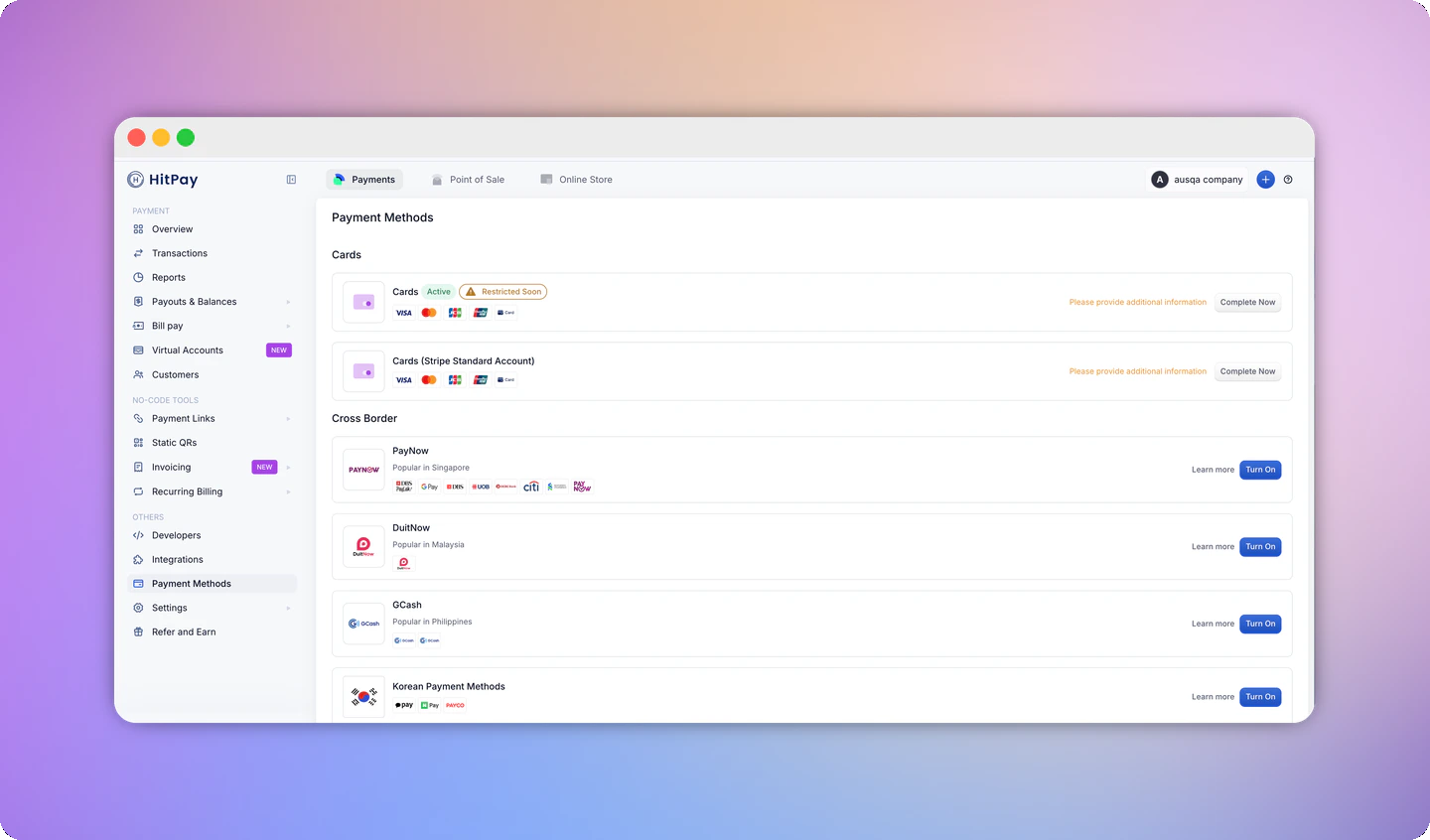
2
Connect your Stripe account
The Stripe onboarding page will open. You can either: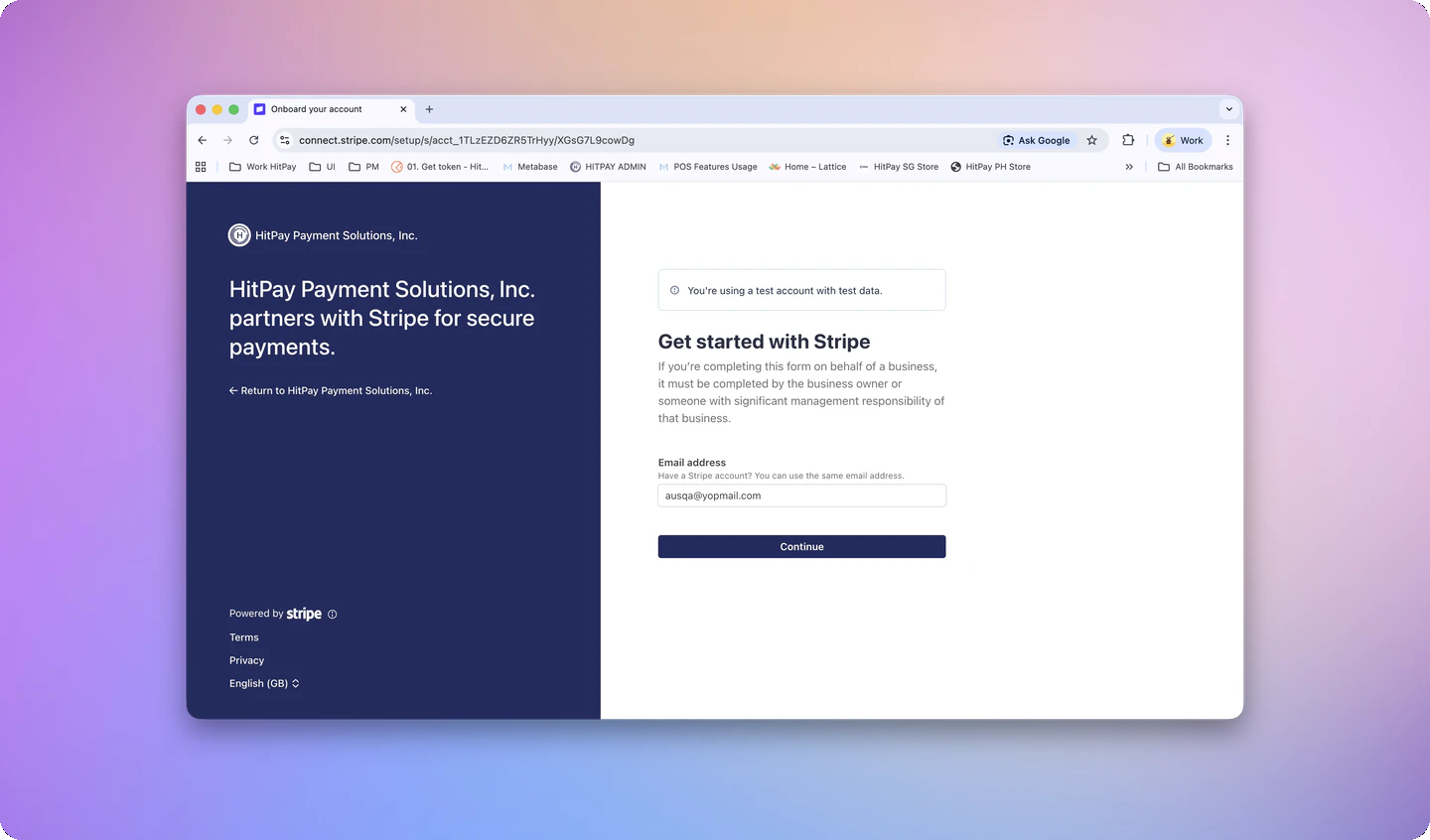
- Connect an existing Stripe account using your existing Stripe email, or
- Create a new Stripe account with a new email address.
3
Complete the onboarding form
Fill in your business details as requested by Stripe. This may include business information, identity verification, and banking details. Complete all steps to activate your card payment capability.
4
Confirm your account is active
Once done, you will see Stripe Standard Connect shown as active in your Payment Methods page. When you log in to your Stripe Dashboard, you will see the HitPay logo alongside your company logo — this confirms your Standard account is successfully linked to HitPay.

Terminal setup
If you use HitPay terminals, some additional steps are required after connecting Stripe Standard. WiFi Terminals WiFi terminals must be re-registered after connecting your Stripe Standard account:- Go to Point of Sale → Card Terminals in your HitPay Dashboard.
- For each WiFi terminal, open the terminal details.
- Select Delete Terminal, then Register Terminal to re-add it.
- Repeat for every WiFi terminal.
- Open your HitPay App > More > Terminal > Forget Terminal
- Reinitiate Tap to Pay pairing
FAQ
What is Stripe Standard Connect vs Custom Connect?
What is Stripe Standard Connect vs Custom Connect?
HitPay partners with Stripe to process card payments. There are two ways this connection can be set up:
Standard Connect gives you more direct control and visibility into your Stripe account, while Custom Connect kept most of that behind the scenes.
Why is HitPay using Stripe Standard Connect?
Why is HitPay using Stripe Standard Connect?
HitPay uses Stripe Standard Connect for several reasons, both for platform integrity and to better protect merchants.
- Reducing chargeback and fraud risk
- Aligning with Stripe’s platform requirements
- Better experience for merchants
- Full Stripe Dashboard access — view transactions, payouts, disputes, and account health directly
- Direct Stripe support — you can contact Stripe directly for account-level issues, not just through HitPay
- More transparency — see exactly how your card payments are processed and settled
- Consistent onboarding — your setup mirrors how new HitPay users in your region are onboarded today
How does this affect refunds?
How does this affect refunds?
Refunds are not affected. You can continue to initiate refunds the same way — either from the HitPay dashboard or directly from your Stripe dashboard.Please note that transaction fees collected on the original payment are not returned as part of a refund.
Where can I view my payout schedule and balance?
Where can I view my payout schedule and balance?
Your payout schedule and available balance are managed directly through your Stripe account. You can view and configure these in your Stripe Dashboard under Balances and Payouts.These details are not visible in your HitPay dashboard.
Which countries are supported?
Which countries are supported?
Stripe Standard Connect through HitPay is available in the following countries:
If your country is not listed, contact [email protected] for assistance.
How does Stripe Radar fraud detection work?
How does Stripe Radar fraud detection work?
With Stripe Standard Connect, Stripe Radar fraud detection rules are applied based on your own Standard Stripe account’s rules — not HitPay’s rules.This means:
- Your Radar rules apply. Any Radar rules you configure in your Stripe Dashboard are the ones that run on your transactions.
- HitPay’s Radar rules do not apply. HitPay’s internal fraud rules are not inherited by your Standard account.
- You are responsible for your fraud configuration. You can set up custom Radar rules, review flagged payments, and manage blocklists directly in your Stripe Dashboard under Radar.