

Inside the app, Agentic Discovery Studio is called AI Commerce by HitPay. They’re the same thing.
Before you begin
You need:- A verified HitPay account. If your business verification isn’t complete, the Studio won’t let you log in. If you don’t have an account yet, create one.
- Somewhere your products are listed. Either:
- your own website, on Shopify, WooCommerce, Wix or a custom site, or
- a HitPay Online Store with published products.
Set up the Studio
1
Open the Studio
In your HitPay dashboard, go to Labs in the sidebar and click Agentic Discovery Studio. You can also go straight to ai-commerce.hitpay.dev.
2
Log in with HitPay
Click Log in with HitPay and approve access on HitPay’s own screen. The Studio never sees your password and you never paste an API key.
3
Add your website
Paste your store’s website and click Make my store AI-ready. The Studio reads every product, price and photo, and gives each product a HitPay checkout.Keep the page open while it works. Large catalogues can take a few minutes, and products already done are kept if anything stops.
4
Check your products
Open Products and look at the Needs a fix filter. Fix anything listed there so assistants have what they need to recommend each product. See Manage what AI reads.
5
Share your AI link
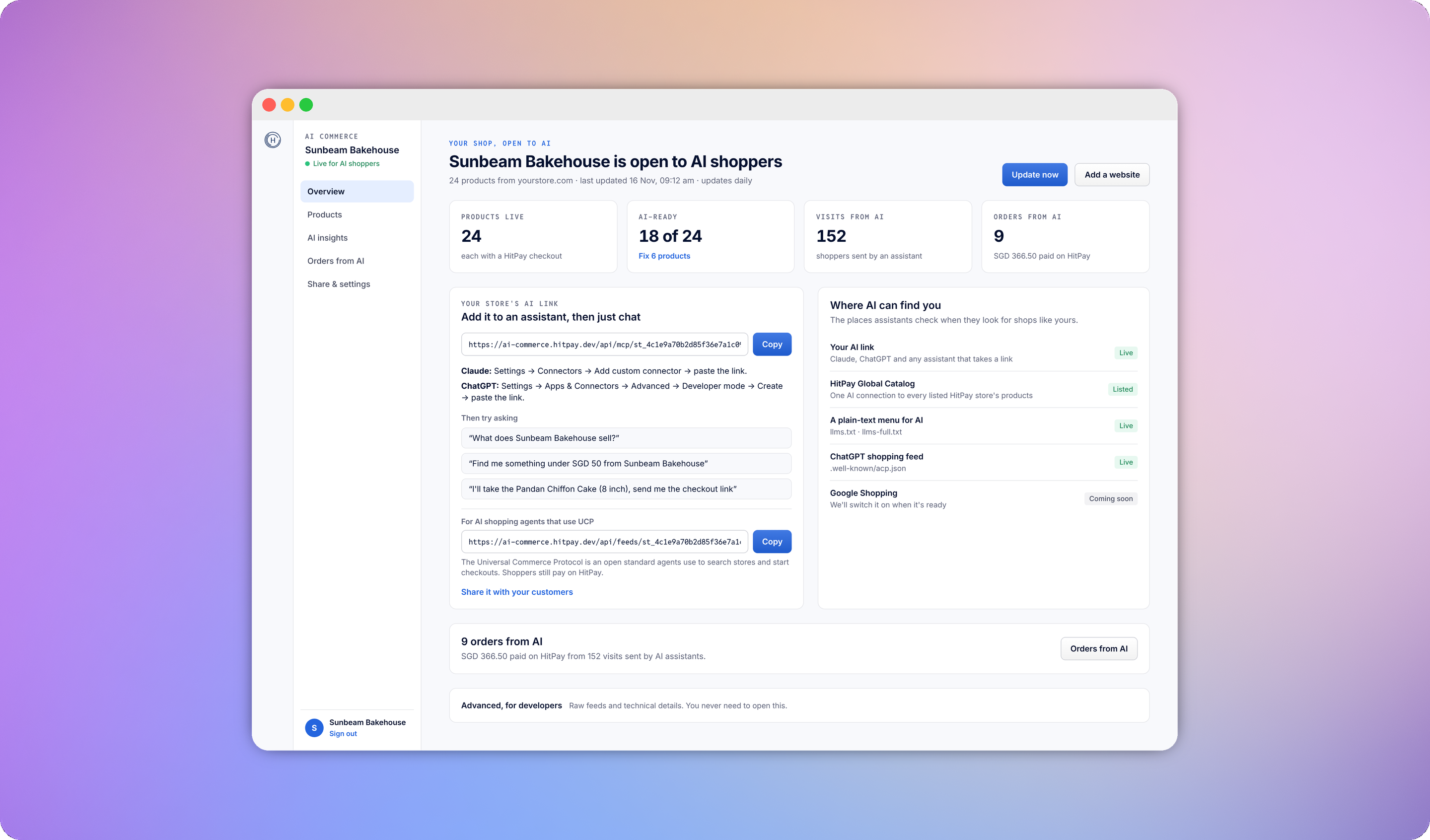
On Overview, copy Your store’s AI link and share it with your customers. See Share your store with shoppers.
How shoppers find you
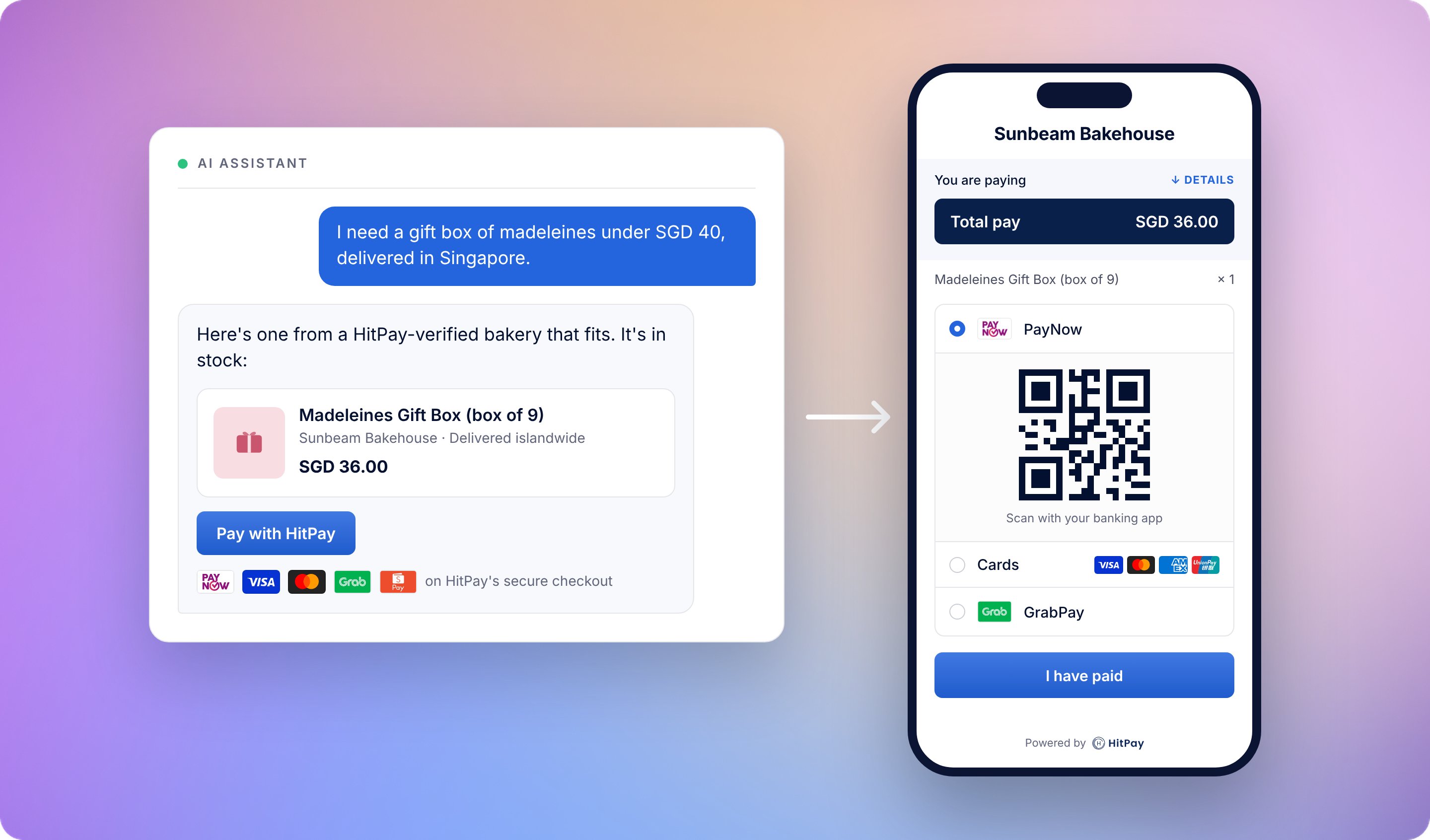
There are three ways in, and they all end at the same HitPay checkout.
The Where AI can find you section of Overview shows the status of each place.
Being readable by AI assistants doesn’t guarantee that your products appear inside ChatGPT’s or Google’s own shopping results. Those platforms decide what they show.
How shoppers add your AI link
Your customers add the AI link to their assistant once:- Claude
- ChatGPT
- Other assistants
- Open Claude and go to Settings > Connectors.
- Choose Add custom connector.
- Give it a name and paste the AI link.
- Start a new chat and ask for what they want.
How you get paid
Shoppers pay on a HitPay checkout page with the payment methods turned on for your HitPay account. The assistant never sees their card. Orders from AI are ordinary HitPay orders. You find them, and ship them, from your HitPay dashboard.Manage what AI reads
The Products page shows what assistants read about each product. Use the filters to find products that need attention: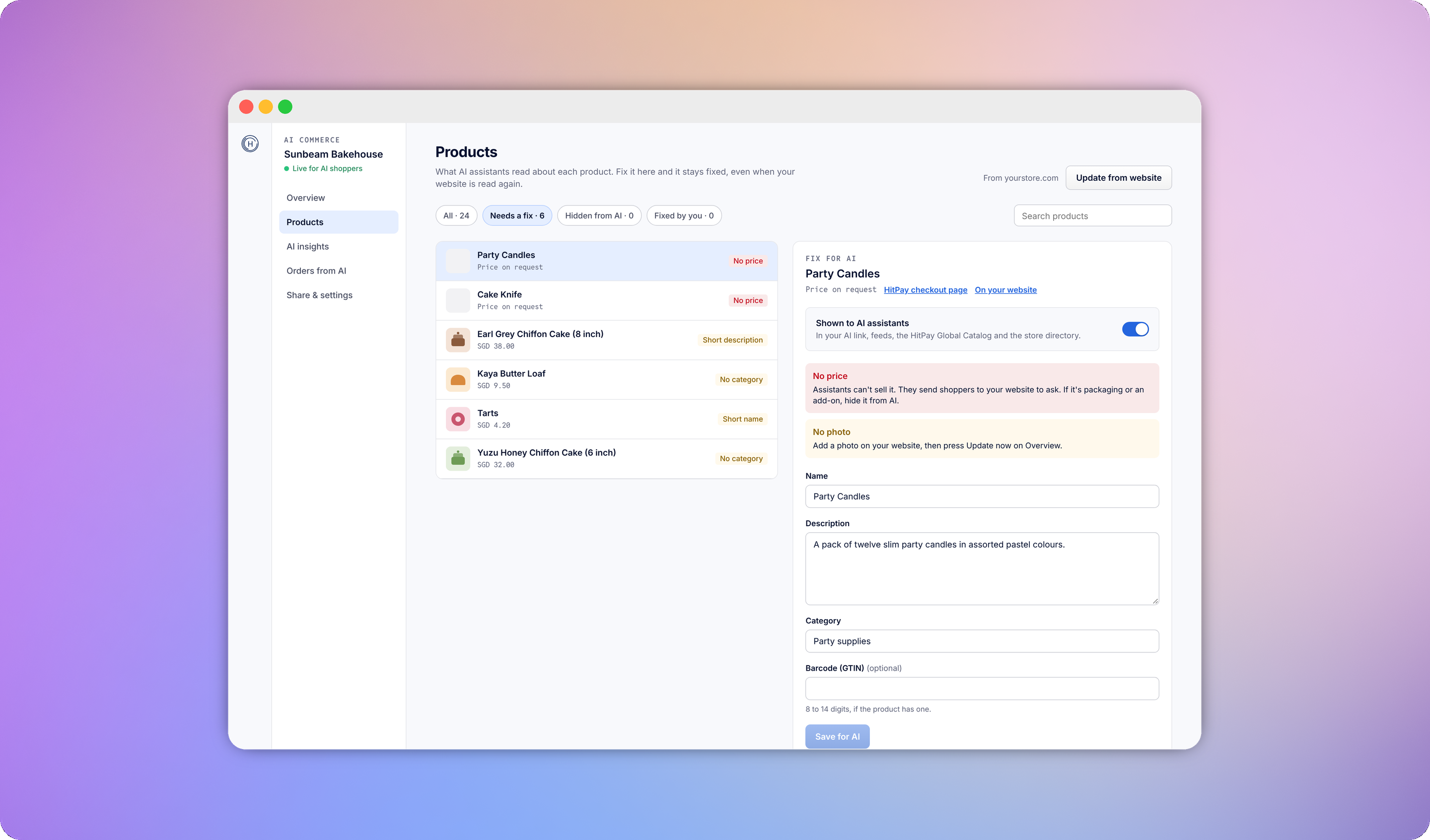
Fix a product
A product needs a fix when it has:- No price. Assistants can’t sell it and send shoppers to your website to ask.
- A short or missing description. Assistants see only the name and price, so they rarely recommend it.
- A short name. A name that says what the product is, such as “Teak Side Table, 50 cm”, is what assistants match a shopper’s question against.
- No category. Shoppers often ask for a kind of thing, such as “outdoor tables”. A category puts the product in those answers.
- No photo.
Hide a product from AI
To keep a product away from assistants, for example packaging or an add-on, select it and turn off Show to AI assistants. It’s removed from your AI link, the feeds, the HitPay Global Catalog and the store directory. It stays on your website and in HitPay.Products held by HitPay
Every product is checked against HitPay’s Acceptable Use Policy before it’s shown to assistants. A product marked Being checked usually clears within the hour. A product marked Held isn’t shown to assistants and gets no HitPay checkout. If you think a product was held by mistake, contact [email protected].Keep your catalogue up to date
The Studio reads your website again once a day, so assistants see your latest prices, stock and new products. To update sooner, click Update now on Overview. To turn the daily update off, go to Share & settings and switch off Update from my website every day. Your products then change only when you click Update now.Assistants see the prices and stock from your last update. If something sells out on your website between updates, it can still be bought on HitPay until the next update.
Track results
AI insights
AI insights shows what assistants asked your store and what happened next: searches, product views, checkout links, shoppers at checkout and paid orders. You can also see which assistants asked and how shoppers reached checkout.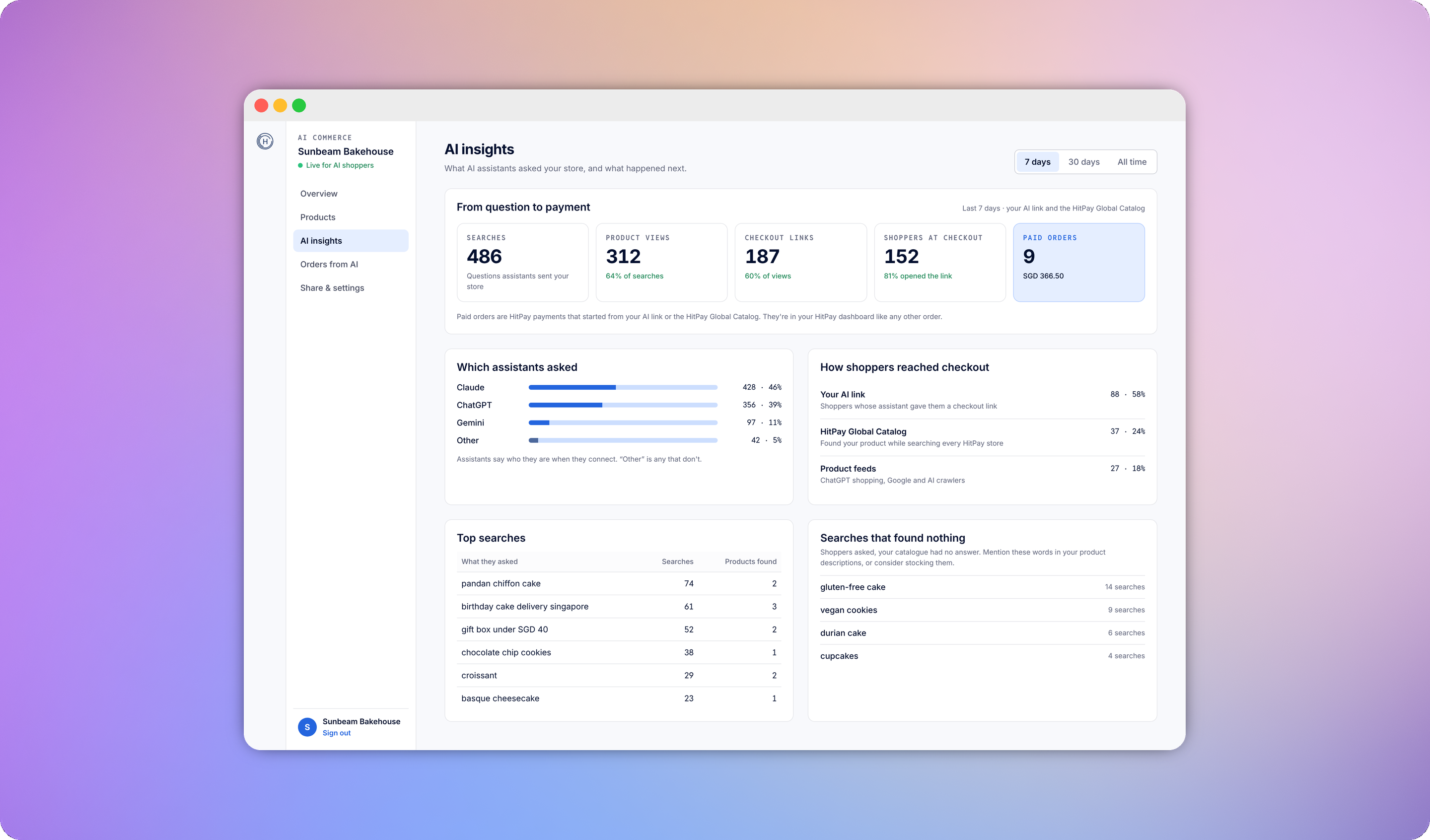
- Top searches: what assistants asked your store most often, and how many products each search found.
- Searches that found nothing: questions your catalogue had no answer for. Mention these words in your product descriptions, or consider stocking the items.
Orders from AI
Orders from AI lists each HitPay payment that started from an AI assistant, with what was bought, where the shopper came from and the HitPay payment.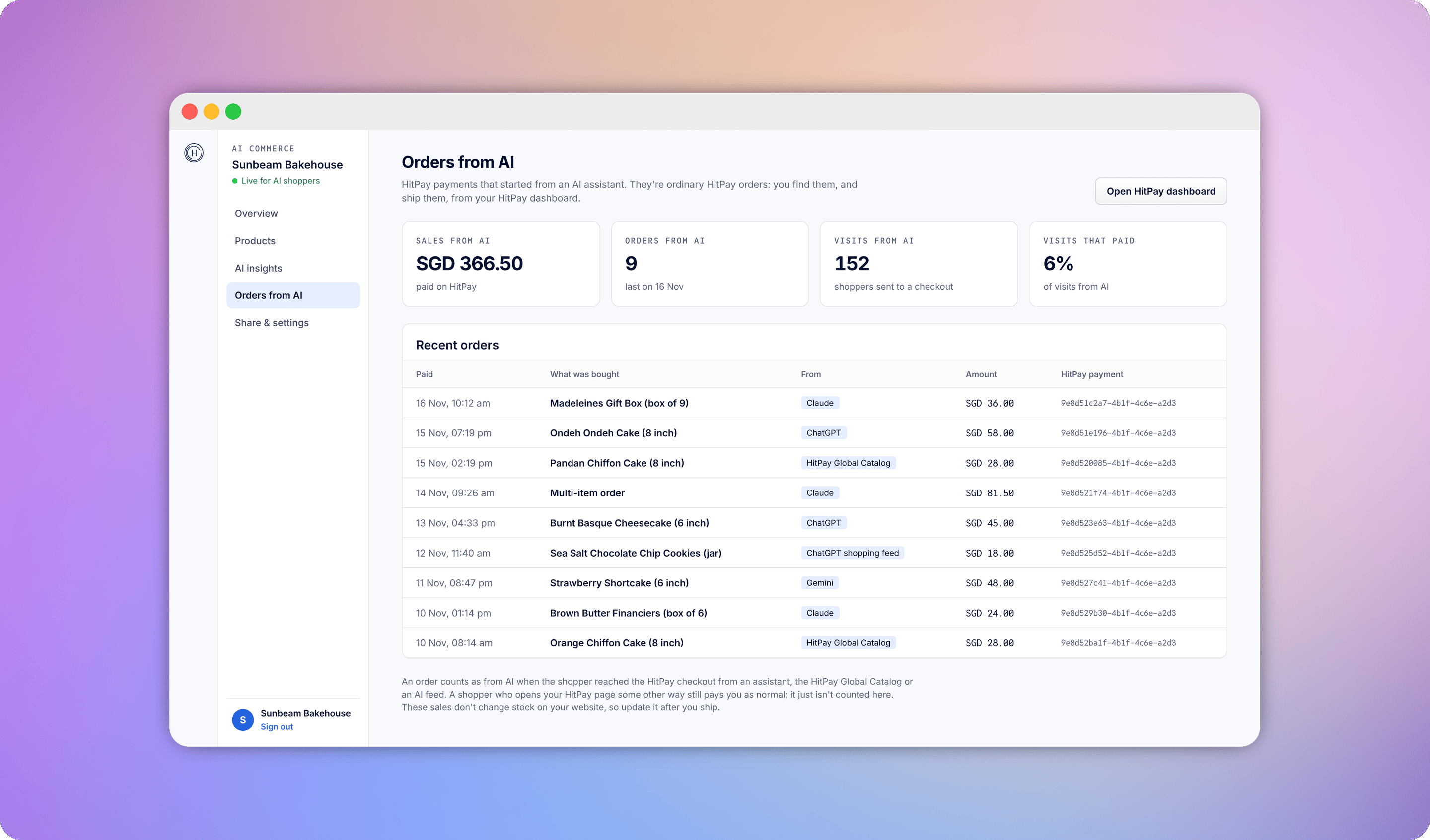
Share your store with shoppers
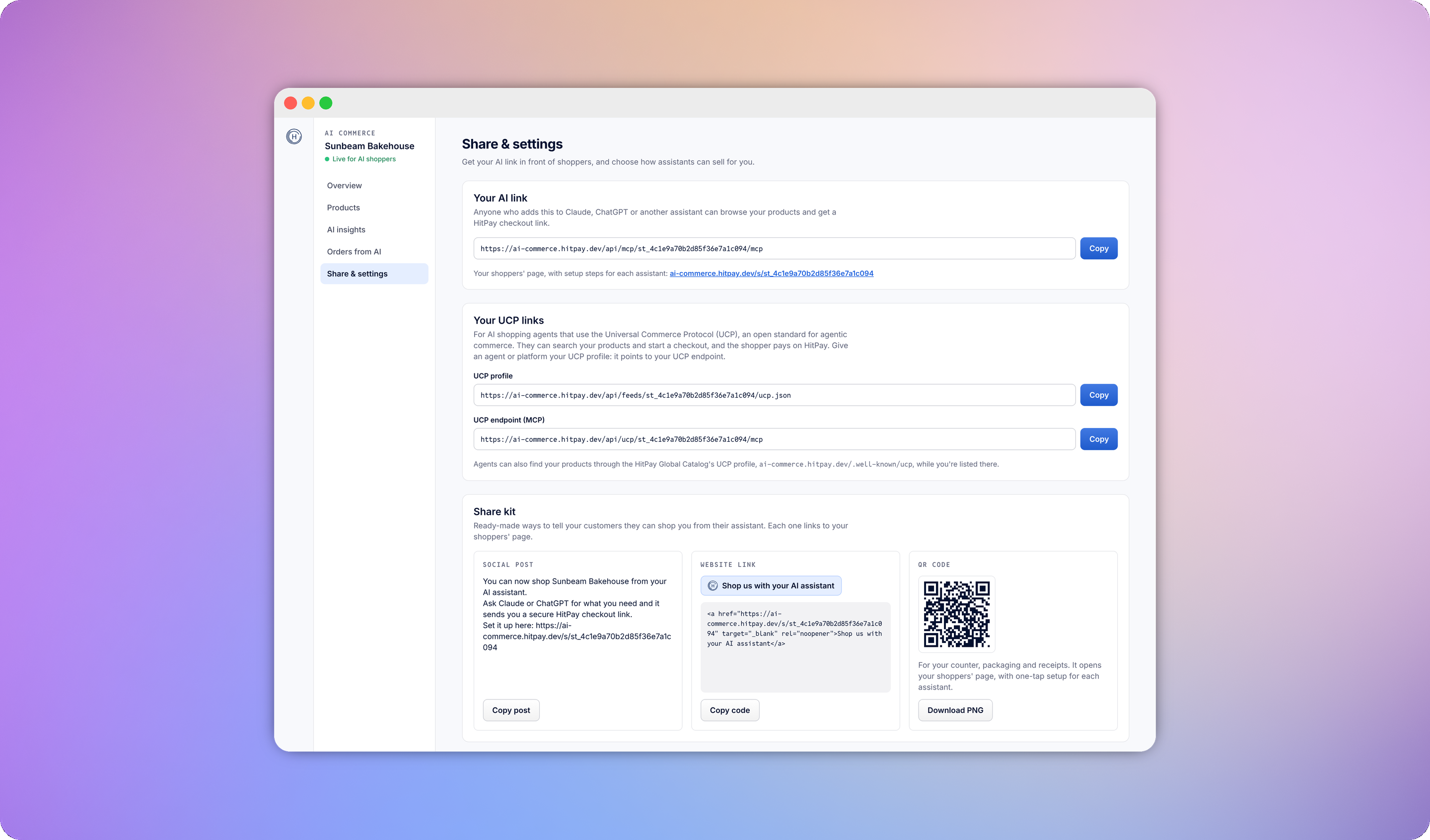
Share & settings gives you ready-made ways to tell customers they can shop with their assistant:- Your AI link, to send to customers directly.
- Your shoppers’ page, with setup steps for each assistant.
- A social post, ready to copy.
- A website link, as a button you can paste into your site.
- A QR code, for your counter, packaging and receipts. It opens your shoppers’ page.
Settings
The settings are further down the Share & settings page.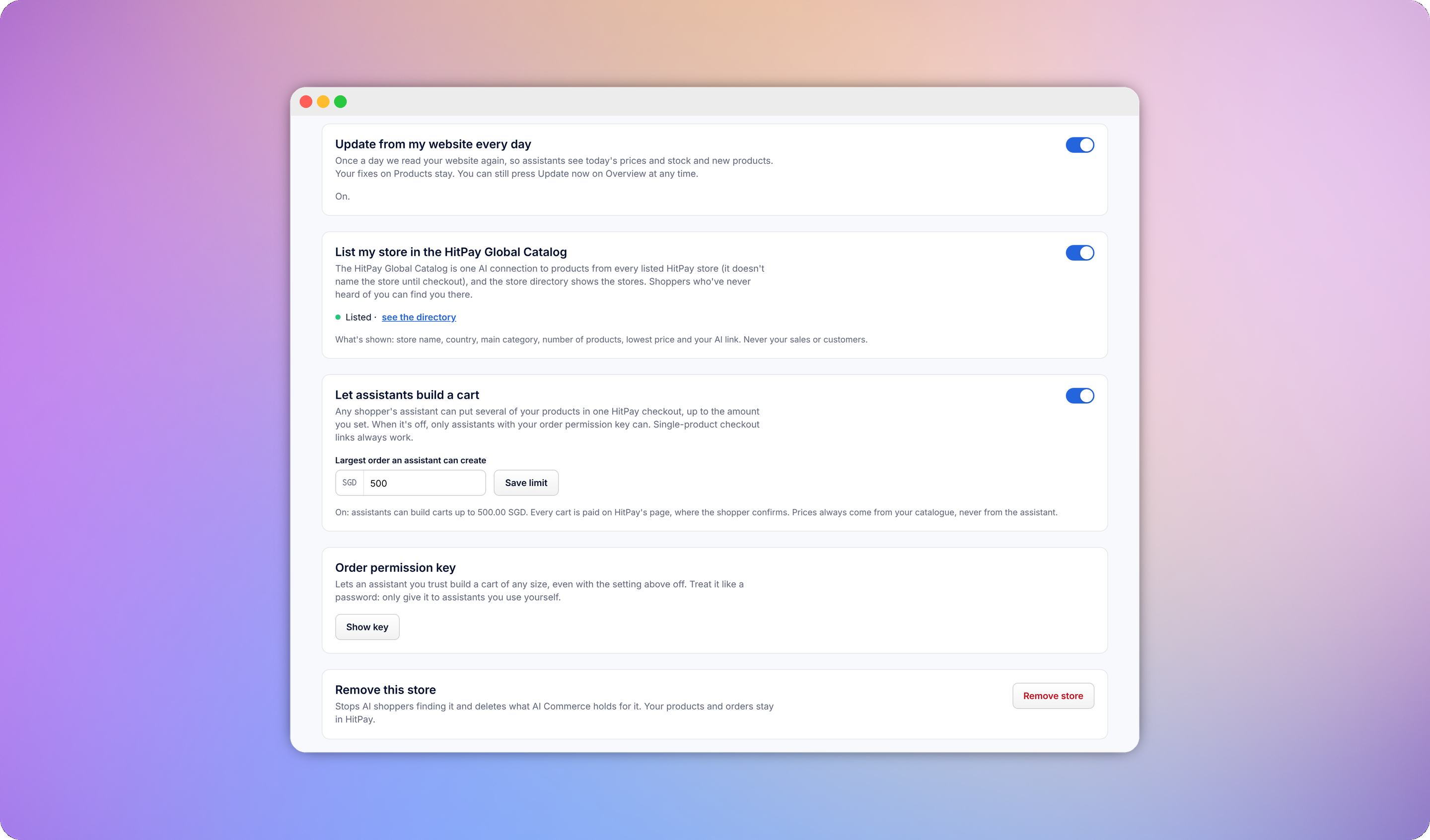
For developers
You never need these to use the Studio. On Overview, open Advanced, for developers to find:- The store’s MCP endpoint, which is the same as the AI link. Its discovery tools are public and read-only.
- Feeds for the Agentic Commerce Protocol (ACP), the Universal Commerce Protocol (UCP) and Google Merchant Center.
- A schema.org snippet to paste into your own product pages so AI crawlers can read your website directly.
Troubleshooting
"Your HitPay account isn't verified yet"
"Your HitPay account isn't verified yet"
The Studio is only open to verified HitPay businesses. Finish your business verification in your HitPay dashboard, then log in again. If your account loses its verification later, your store is paused and your products aren’t shown to assistants until you’re verified again.
"We couldn't read your site directly"
"We couldn't read your site directly"
Your website had no product data the Studio could read, so it searched the web for your products instead. Prices may be wrong and some products may be missing. Paste the page that lists your products, such as your Shop, Menu or Products page, and run the update again. Check your products before you share your AI link.The daily update isn’t available for your store until the Studio can read your website directly.
The HitPay connection was revoked or expired
The HitPay connection was revoked or expired
Your products stay live, but updates and orders are paused. Click Reconnect with HitPay and log in again.
The daily update didn't finish
The daily update didn't finish
The Studio tries again the next day. To update straight away, click Update now on Overview.
Some products didn't make it into HitPay
Some products didn't make it into HitPay
Click Update now on Overview to try again.
I have no orders from AI yet
I have no orders from AI yet
That’s normal for a new store. Your shop is live to assistants, and orders appear in Orders from AI automatically when a shopper pays. Share your AI link with your customers to get started.