

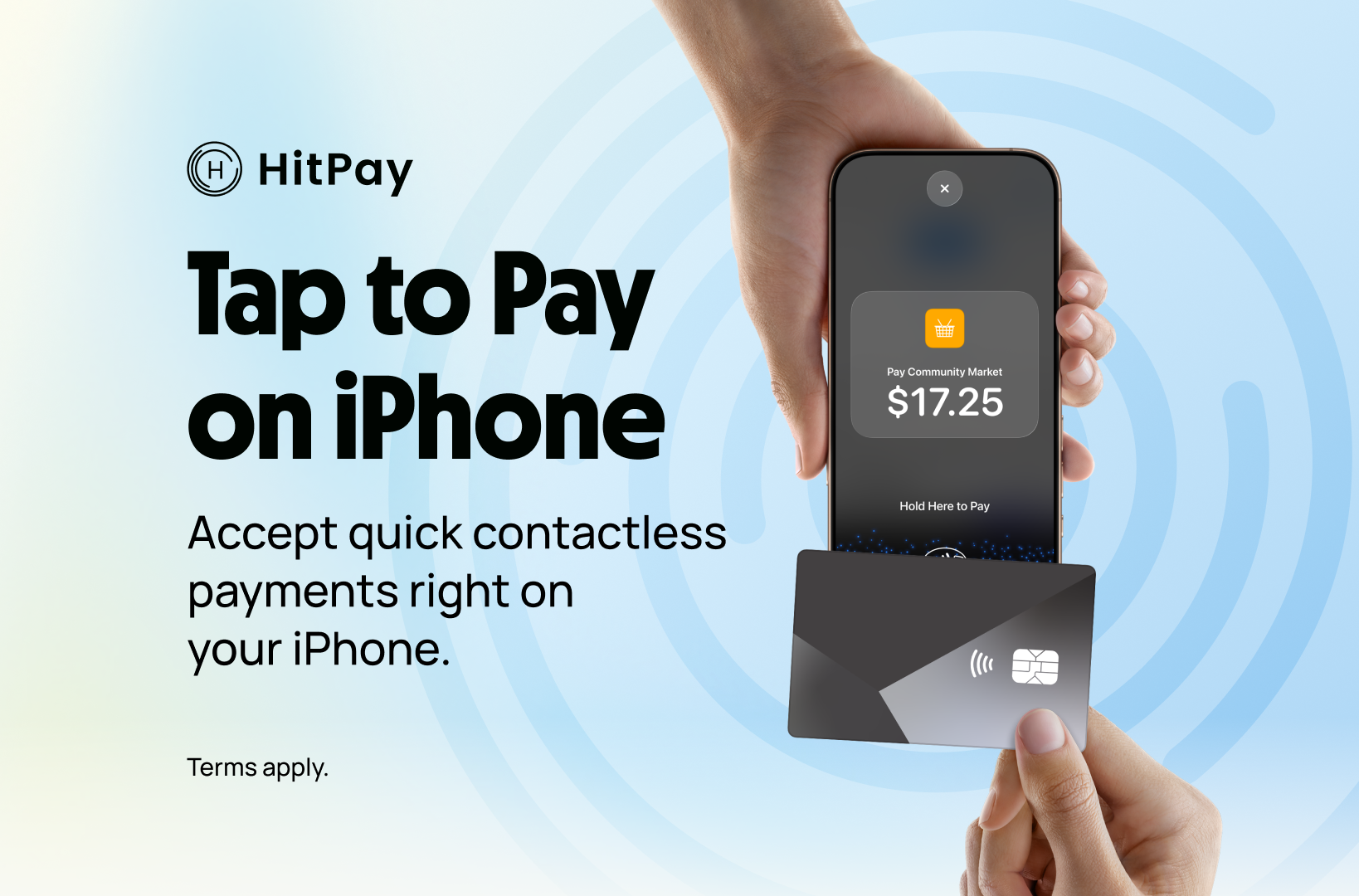
What is Tap to Pay on iPhone?
Tap To Pay payments powered by HitPay allows you to accept contactless transactions using supported NFC-powered mobile devices. For more information, visit Apple’s Tap to Pay on iPhone page and the Apple Business Connect Tap to Pay on iPhone FAQ.iOS Device Compatibility
- iPhone XS or later
- Running iOS 18 or later
- Downloaded HitPay app version 4.8.1 or later
Tap to Pay on iPhone does not work on iPad. This feature is only available on iPhone devices.
Tap to Pay Availability by Country
Tap to pay is only available in the following countries:Steps to Set Up
To set up Tap To Pay on iPhone, follow these steps:
- Ensure you have an iPhone XS or later running iOS 18 or later.
- Download and install the HitPay app from the App Store.
- Launch the HitPay app and log in to your HitPay account.
- Enable Tap to Pay on iPhone in the HitPay app settings.
- Verify the correct Apple ID is shown. If not, select Use a Different Apple ID.
- Tap Agree & Continue to turn on Tap to Pay on iPhone.
- Follow the on-screen instructions to complete the setup process.
- Once set up is complete, you can start accepting contactless payments with Tap To Pay on iPhone.
Steps to Accept a Payment
To accept a payment with Tap To Pay on iPhone, follow these steps:
- Open the HitPay app on your iPhone.
- Enter the transaction amount on the app’s home screen.
- Choose “Tap to Pay” as the payment method.
- Present your iPhone to your customer with the contactless payment icon displayed.
- The customer holds their card horizontally or places their payment device directly over the contactless payment icon.
- The payment will be processed, and a confirmation will be displayed on the app.
- The transaction is complete, and you can provide a receipt to the customer if needed.
Cardholder verification limits and fallback
Some contactless card transactions above certain amounts might require additional cardholder verification methods (CVM) such as PIN entry. Tap to Pay on iPhone supports PIN entry for devices running iOS 16.4 or later. Tap to Pay on iPhone supports PIN entry in most cases—but not all—because PIN rules depend on card type, bank issuer, and regional regulations.Why Transactions May Require PIN
Card issuers set their own rules for contactless payments. Depending on the region or bank :- High-value transactions may require extra verification.
- Strong Customer Authentication (SCA) may force certain cards to be inserted into a terminal.
- Some cards only support offline PIN, which requires chip insertion.
PIN Entry Cases
✅ Online PIN Required (Supported by Tap to Pay on iPhone)- Contactless transactions above certain amounts might require PIN verification, depending on issuer requirements.
- The customer can enter their PIN directly on the iPhone screen when prompted.
PIN Verification Thresholds by Country
PIN Verification Thresholds by Country
The following amounts might trigger online PIN verification on the phone:
- Australia: 100 to 200 AUD depending on the card scheme
- Canada: 250 CAD
- Japan: 15,000 JPY
- Malaysia: 250 MYR
- New Zealand: 200 NZD
- Singapore: SGD 200
- United Kingdom: 100 GBP
- Tap to Pay on iPhone will not work with offline PIN cards.
- Offline PIN cards require physical contact (card insertion) which isn’t supported with Tap to Pay.
FAQs
Which devices work with Tap to Pay on iPhone?
Which devices work with Tap to Pay on iPhone?
Tap to Pay on iPhone requires iPhone XS or later. Make sure your device meets these requirements before setting up.
Which operating systems can I use Tap to Pay on iPhone with?
Which operating systems can I use Tap to Pay on iPhone with?
Tap to Pay on iPhone works best with the latest version of iOS. To update to the latest version of iOS on your iPhone, go to Settings > General > Software Update. Then tap Download and Install.
Which payment types can I accept?
Which payment types can I accept?
With Tap to Pay on iPhone, you can accept all types of in-person, contactless payments right on your iPhone — from physical debit and credit cards to Apple Pay and other digital wallets, including Android. Some contactless cards may not be accepted by your payment app. Transaction limits may apply.
How do I accept payments?
How do I accept payments?
Accepting payments with Tap to Pay on iPhone is easy. First, enable Tap to Pay on iPhone in the HitPay app. Then open the HitPay app, enter the purchase amount, and present your iPhone to your customer. Customers can hold their card horizontally or place their payment device directly over the contactless payment icon. They can pay with a physical debit or credit card, Apple Pay, or other digital wallets, including Android.
Is Tap to Pay on iPhone secure?
Is Tap to Pay on iPhone secure?
Yes. Tap to Pay on iPhone is designed with privacy and security built in:
- Apple doesn’t store card numbers or PINs on Apple servers.
- Encrypted card numbers are temporarily stored on iPhone only for transactions made in Store and Forward mode.
- Designed to block camera and screen captures during transactions.
Do I need additional hardware or terminals?
Do I need additional hardware or terminals?
No. There’s no need to invest in or manage card readers and terminals. All you need is your iPhone and the HitPay app to accept contactless payments.
Where can I get more information?
Where can I get more information?
For more details about using Tap to Pay on iPhone, integrating it with your business, and troubleshooting, visit the Apple Business Connect Tap to Pay on iPhone FAQ page.