Overview

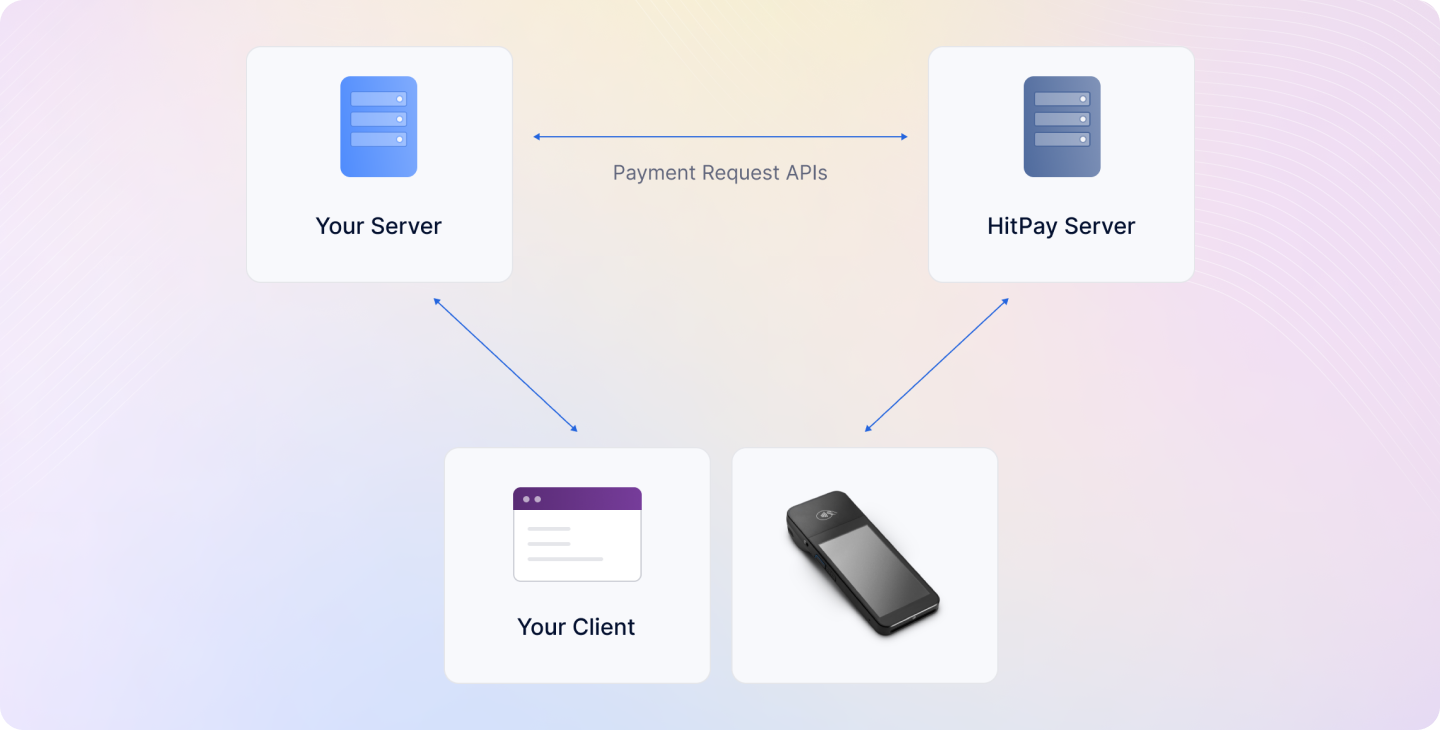
These APIs are designed to enable a variety of use cases where in-person payments are necessary. Here are a few examples of how this API can be used:
  • Self Server Kiosk
  • Point of Sale
  • Vending Machines

Terminal Devices Supported

How It Works

Card reader APIs flow
  1. Your client device (e.g., POS, Kiosk) sends a request to your backend server to initiate the payment process.
  2. Your backend server calls the Payment Request API with the payment method set as “wifi_card_reader”.
  3. HitPay initiates the payment process on the card reader that is already connected to the wifi.
  4. Your customer presents their card to the card reader and completes the payment process.
  5. HitPay sends a webhook to your backend server with the payment status information.
  6. Your backend server receives the webhook and updates the order status accordingly.

Setup Your Reader

Before you can use the In-Person Payments using Payment Requests API, you’ll need to order a card reader and complete the setup process. Here’s what you need to do:
  1. Order a card reader: Guide
  2. Register the reader (for WisePOS E / FlexiPOS only): Guide

Displaying Payments on the Terminal

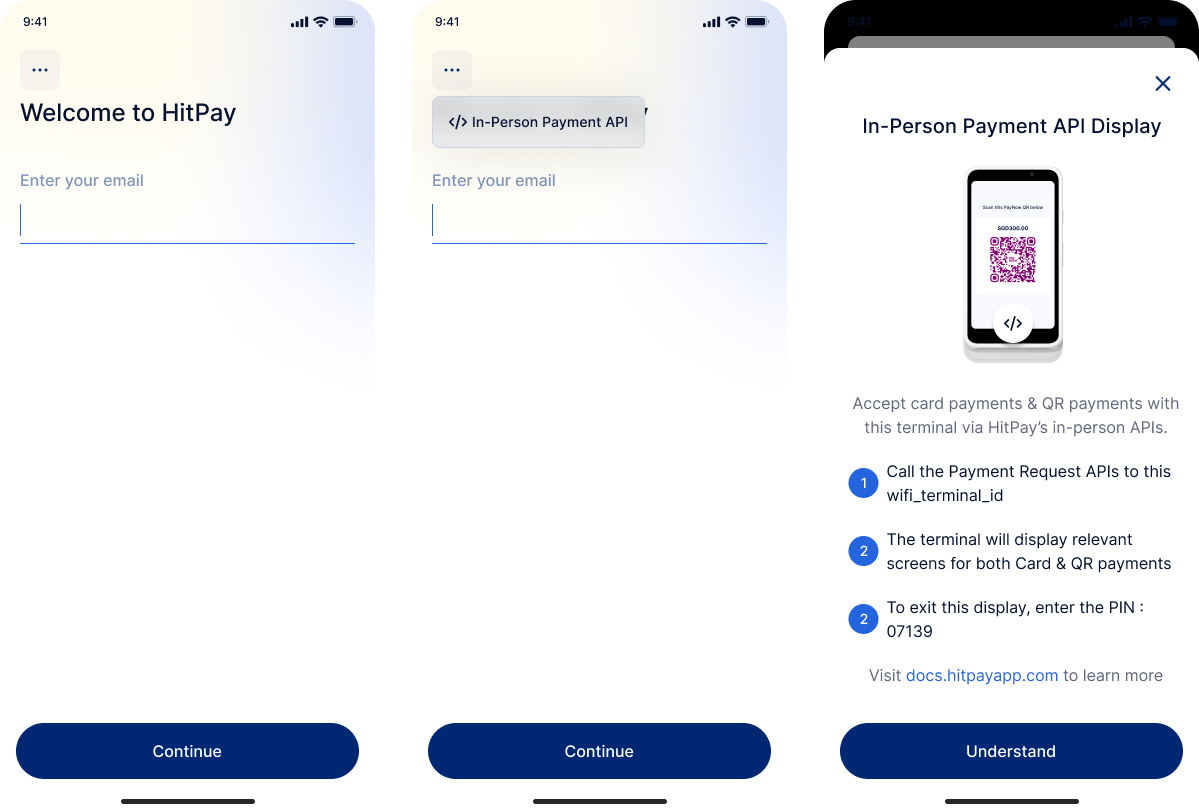
After switching your terminal to Standalone mode:
  1. On the login screen, tap the button on the top left corner.
  2. Select In-Person Payment API from the menu.
  3. The terminal will now display the In-Person Payment API screen, allowing you to accept card and QR payments.
In-Person Payment API Display When in this mode:
  • The display will show the HitPay logo.
  • If a QR payment method is selected, the relevant QR code will be displayed for the customer to scan.
  • If a card payment method is selected, the display will show instructions to tap, insert, or swipe the card.
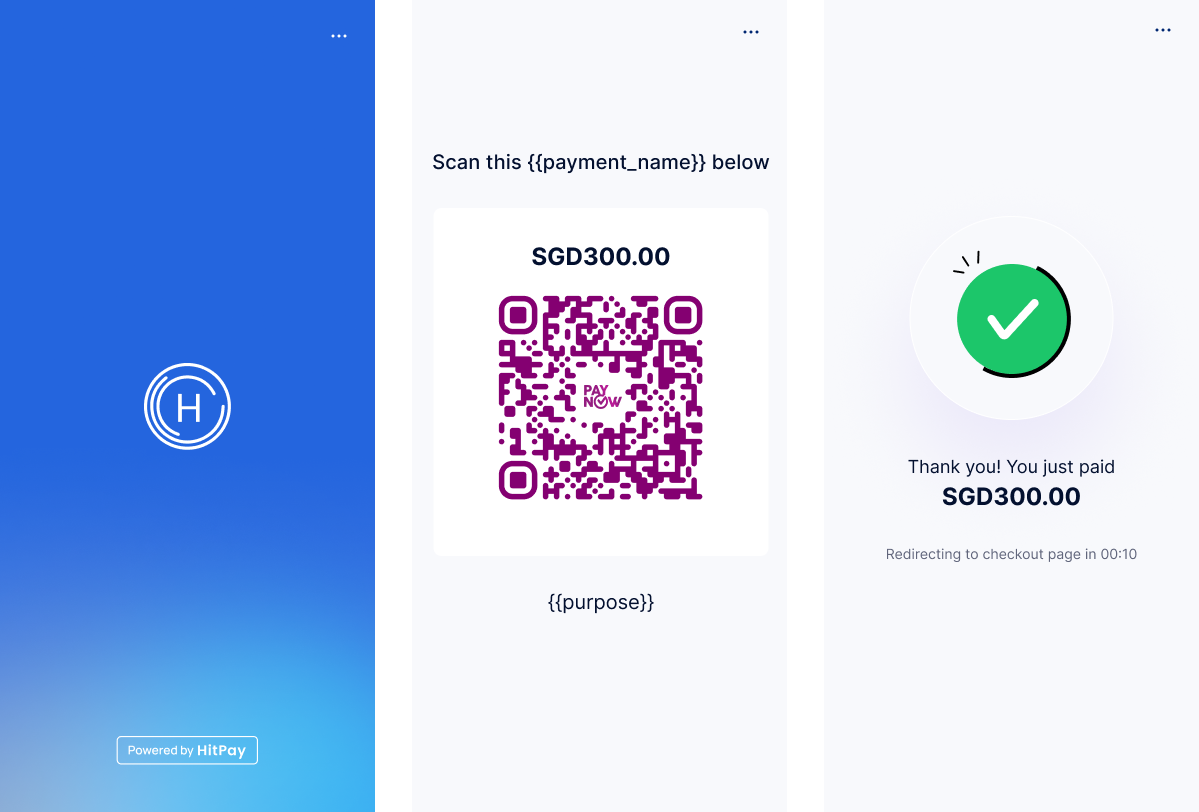
In-Person Payment API Display
To quit the In-Person Payment API mode, please enter the PIN: 07139.

Ingenico DX4000

For HitPay All-in-One Ingenico DX4000 Terminal in Philippines, you have two options:
  1. To accept QR payments only, follow instructions above. No log in is needed.
  2. To accept both QR and cards payments, log in to your HitPay account, go to Settings > In-person Payment > key in PIN: 8888 (use the same PIN to exit mode)

Payment Methods

The in-person payment API supports two main payment methods:

1. Card Payments

Accept physical card payments (credit/debit cards) using the card reader.

2. QR Payments

Accept QR code payments where customers scan the QR code displayed on the card reader screen.

Create Payment Requests via APIs

Once you have all the details from the client and are ready to collect payments, use this API to create a payment request. Endpoint
POST https://api.sandbox.hit-pay.com/v1/payment-requests

Initiating Card Payments

To initiate a card payment, follow these steps:
  1. Create Payment Request: Use the Payment Request API with payment_methods[] set to wifi_card_reader
  2. Card Reader Activation: The card reader will automatically activate and display “Ready for Payment”
  3. Customer Interaction: Ask your customer to insert, tap, or swipe their card on the reader
  4. Payment Processing: The card reader will process the payment and display the result
  5. Webhook Notification: You’ll receive a webhook with the payment status

Query Parameters

Mandatory fields are amount and currency
ParameterDescriptionExample
amountThe amount related to the payment2500.00
payment_methods[]Indicate that the request is for in-person payments using a wifi card readerwifi_card_reader
currencyIn-Person payments only support the home currency of your businessSGD
wifi_terminal_idThe reader ID can be found in your dashboard under “POS > Terminals”. For Ingenico DX4000 PH terminals, use the last 8 digits of your terminal SN located at the back of your terminal.tmr_123123123 (WisePOSE),
MD9Q2493 (Ingenico PH), S1F2-001582391283 (All-in-One S1F2)
$client = new http\Client;
$request = new http\Client\Request;
$request->setRequestUrl('https://api.sandbox.hit-pay.com/v1/payment-requests');
$request->setRequestMethod('POST');
$body = new http\Message\Body;
$body->append(new http\QueryString(array(
  'amount' => '599',
  'currency' => 'SGD',
  'payment_methods[]' => 'wifi_card_reader',
  'wifi_terminal_id' => 'tmr_123123123')));$request->setBody($body);
$request->setOptions(array());
$request->setHeaders(array(
  'X-BUSINESS-API-KEY' => 'meowmeowmeow',
  'Content-Type' => 'application/x-www-form-urlencoded',
  'X-Requested-With' => 'XMLHttpRequest'
));
$client->enqueue($request)->send();
$response = $client->getResponse();
echo $response->getBody();

Initiating QR Payments

In-person QR payments using payment request APIs are currently in public BETA
To initiate a QR payment, follow these steps:
  1. Create Payment Request: Use the Payment Request API with payment_methods[] set to any supported QR payment method and generate_qr set to true
  2. QR Code Display: The card reader will automatically display a QR code on its screen
  3. Customer Scanning: Ask your customer to scan the QR code using their mobile payment app (e.g., PayNow, GrabPay, etc.)
  4. Payment Processing: The customer completes the payment through their mobile app
  5. Webhook Notification: You’ll receive a webhook with the payment status

Supported QR Payment Methods

For QR payments, you need to use one of the supported QR payment methods. See the complete list of supported QR payment methods.
QRPH payment method is currently not supported through in-person payment request APIs

Query Parameters

ParameterDescriptionExample
amountThe amount related to the payment2500.00
payment_methods[]One of the supported QR payment methods (e.g., paynow_online)paynow_online
currencyIn-Person payments only support the home currency of your businessSGD
wifi_terminal_idThe reader ID can be found in your dashboard under “POS > Terminals”. For Ingenico DX4000 PH terminals, use the last 8 digits of your terminal SN located at the back of your terminal.tmr_123123123 (WisePOSE),
MD9Q2493 (Ingenico PH), S1F2-001582391283 (All-in-One S1F2)
generate_qrSet to true to generate QR code datatrue
$client = new http\Client;
$request = new http\Client\Request;
$request->setRequestUrl('https://api.sandbox.hit-pay.com/v1/payment-requests');
$request->setRequestMethod('POST');
$body = new http\Message\Body;
$body->append(new http\QueryString(array(
  'amount' => '599',
  'currency' => 'SGD',
  'payment_methods[]' => 'paynow_online',
  'generate_qr' => 'true',
  'wifi_terminal_id' => 'tmr_123123123')));$request->setBody($body);
$request->setOptions(array());
$request->setHeaders(array(
  'X-BUSINESS-API-KEY' => 'meowmeowmeow',
  'Content-Type' => 'application/x-www-form-urlencoded',
  'X-Requested-With' => 'XMLHttpRequest'
));
$client->enqueue($request)->send();
$response = $client->getResponse();
echo $response->getBody();

Response

The response will include a qr_code_data object, which contains the data to be converted into a scannable QR code (qr_code).
{
  "id": "9c262fb5-f3cd-4187-8c3e-fbe20730b9c6",
  "amount": "599.00",
  "currency": "sgd",
  "status": "pending",
  "payment_methods": [
    "paynow_online"
  ],
  "wifi_terminal_id": "tmr_123123123",
  "qr_code_data": {
    "qr_code": "00020101021226550009SG.PAYNOW010120210201605883W030100414202405281445315204000053037025406599.005802SG5905Nitin6009Singapore62290125DICNP17168782314914MWULPX63043561",
    "qr_code_expiry": null
  }
}
The card reader will automatically determine whether to show a QR code or activate card reading based on the available payment methods and customer preference.

Handle Webhooks

After the payment is processed, HitPay sends a webhook to your server with the payment status.

Register Your Webhook

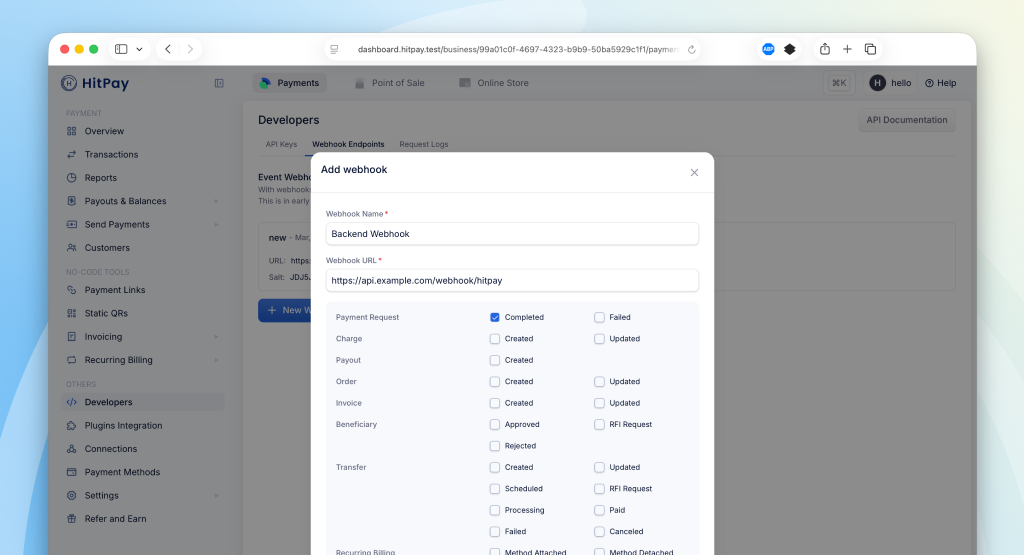
To receive payment notifications, register a webhook URL from your HitPay Dashboard:
  1. Navigate to Developers > Webhook Endpoints in your dashboard
  2. Click on New Webhook
  3. Enter a name and your webhook URL
  4. Select the payment_request.completed event
  5. Save your webhook configuration
Webhook Registration

Webhook Payload

When a payment is completed, HitPay sends a JSON payload to your registered webhook URL with the following headers:
HTTP HeaderDescription
Hitpay-SignatureHMAC-SHA256 signature of the JSON payload, using your salt value
Hitpay-Event-Typecompleted
Hitpay-Event-Objectpayment_request
User-AgentHitPay v2.0

Sample Webhook Payload

{
  "id": "9c262fb5-f3cd-4187-8c3e-fbe20730b9c6",
  "name": "John Doe",
  "email": "[email protected]",
  "amount": "599.00",
  "currency": "SGD",
  "status": "completed",
  "reference_number": "ORDER123",
  "payment_methods": ["wifi_card_reader"],
  "created_at": "2024-05-28T14:37:11",
  "updated_at": "2024-05-28T14:38:25",
  "payments": [
    {
      "id": "9c262fb5-a1b2-4c3d-8e9f-123456789abc",
      "status": "succeeded",
      "currency": "sgd",
      "amount": "599.00",
      "refunded_amount": "0.00",
      "payment_type": "card_present",
      "fees": "2.50",
      "created_at": "2024-05-28T14:37:11",
      "updated_at": "2024-05-28T14:38:25"
    }
  ]
}

Validating the Webhook

To ensure the webhook is authentic, validate the Hitpay-Signature header:
function validateWebhook($payload, $signature, $salt) {
    $computedSignature = hash_hmac('sha256', $payload, $salt);
    return hash_equals($computedSignature, $signature);
}

// Usage
$payload = file_get_contents('php://input');
$signature = $_SERVER['HTTP_HITPAY_SIGNATURE'];
$salt = 'your_salt_from_dashboard';

if (validateWebhook($payload, $signature, $salt)) {
    $data = json_decode($payload, true);
    // Process the payment confirmation
    // Mark order as paid
} else {
    http_response_code(401);
    exit('Invalid signature');
}

Next Steps

Now that you understand the basics of in-person payments:

FAQs

The webhook parameter in the payment request API is deprecated and will be removed in a future version.Why the change?
  • The new registered webhook system supports JSON payloads with richer data
  • You can subscribe to multiple event types (not just payment completion)
  • Centralized management from your dashboard
  • Better scalability - one webhook URL handles all your payment requests
Migration:
  1. Register your webhook URL in Developers > Webhook Endpoints
  2. Subscribe to payment_request.completed event
  3. Update your webhook handler to accept JSON payloads
  4. Remove the webhook parameter from your API calls
No, these APIs only work with Wi-Fi readers.
No, you cannot connect a Bluetooth printer to the Wi-Fi terminal.
The card reader automatically detects the payment method. When you create a payment request, the reader will display a QR code first. If the customer prefers to pay with a card, they can simply insert or tap their card on the reader.
The supported QR payment methods depend on your business location and the payment networks available in your region. Common methods include PayNow (Singapore), Ingenicos (PHP), PromptPay (Thailand), and other local QR payment schemes. See the complete list of supported QR payment methods.
QRPH payment method is currently not supported through in-person payment request APIs
Yes, you can test in Sandbox! However, the APIs do not support a virtual simulator. To test successfully:
  • For Card Payments: You’ll need a physical test card. Contact HitPay support to obtain test cards for your region.
  • For QR Payments: You can test with QR code payments using your mobile payment app, as these don’t require physical cards.
All testing must be done with real terminals connected to the Sandbox environment. See the Testing in Sandbox page for detailed instructions.
If you are using a payment plugin, after every successful payment, a webhook is sent to your store to acknowledge the payment confirmation. Your order is marked as paid through this webhook.A webhook status showing as "failed" indicates that Hitpay failed to communicate with your server. This can happen for the following reasons:
  • Your store may have a security feature that blocked Hitpay's request.
  • Your server was unavailable during this time.
To avoid this issue, ensure that you whitelist Hitpay's IP addresses:
  • Production: 3.1.13.32, 52.77.254.34
  • Sandbox: 54.179.156.147
For further details, please review your store's debug logs.