

All-in-One Terminal is available in Singapore, HongKong.
Overview
The Verifone V660P is a portable, all-in-one POS terminal with:- Built-in card payments
- Integrated receipt printing
- Wi-Fi and cellular connectivity support
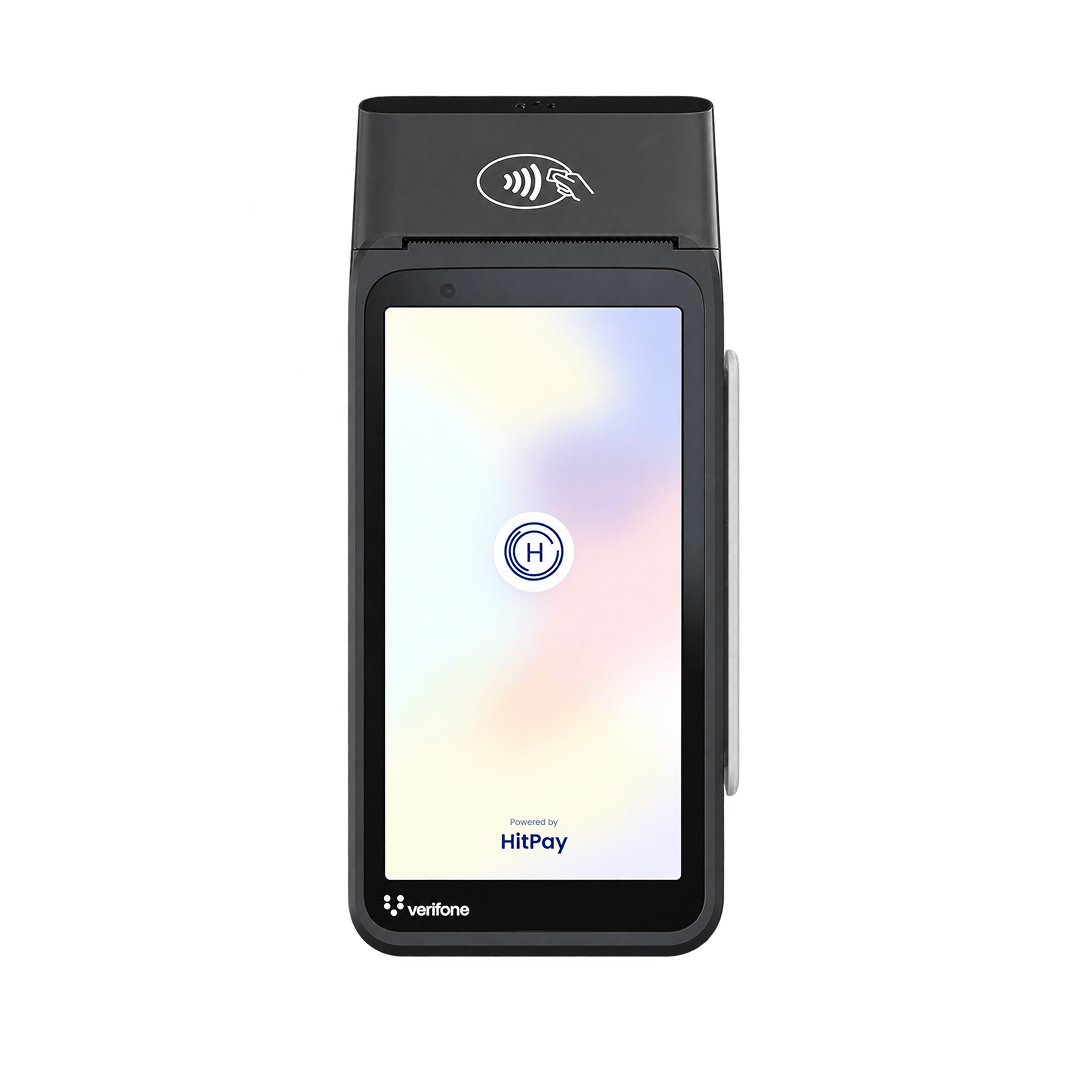
Steps to get your All-in-One Terminal
- Sign up for a HitPay account
- Complete your KYC and get approved.
- Contact Sales to enable card payments.
- In your HitPay Dashboard: Settings > Payment Methods > Select “Turn On” for Cards
- Complete card payment onboarding.
- Purchase the terminal
- Your terminal will be shipped to you — you’re ready to go!
Steps to Set Up
- Plug the provided cable into the port with the lightning bolt symbol to power the reader. Press the Power button to switch on the device.
- After switching on for the first time, you will be prompted to connect to a Wi-Fi network. Connect to your Wi-Fi network.
- A pairing code (e.g., Tang-Peace-Man) should appear on the terminal upon startup.
- Connect the reader to your account. Open the HitPay dashboard and navigate to Point of Sales > Terminal > Register Terminal. Insert the code under the Registration Label and connect.
Steps to Accept a Payment
To accept payment, follow these steps below:- Standalone Mode
- Complete the setup steps above.
- Open the HitPay app and log in.
- Enter the amount and tap Charge. (Optional) Add invoice number, remarks, or description.
- Choose Card Terminal as the payment method.
- Tap, swipe or insert the customer’s card. Wait for success confirmation.
Set Up your Printer Settings (Auto/Manual)
- Open HitPay app.
- Go to Settings > Printer.
- Click on the Printer Settings (Gear Icon) on the top right of the page.
- Choose to enable/disable the automatic receipt printing by turning on/off the toggle.
- If you selected Automatic, select the number of receipts to be printed. If you are printing more than 1 receipt, you can set the time delay between each prints. If you selected Manual, tap “Print” after each transaction.
- Once you’ve configured your preferences, click on the “Save” button to apply the changes.
Specifications
Expected sounds during payment
The following table describes sounds that occur during successful and failed payments on the Verifone V660P reader.Connectivity
- Wi-Fi
- Ethernet
Connecting via Wi-Fi
To connect to Wi-Fi or switch networks, open Settings using one of the following paths, then select Network > Wi-Fi and connect to your network:- If logged into the HitPay app: Go to More > Check Reader Settings, then enter the admin passcode
07139. - If not in the HitPay app: Press the ⋯ button at the top right, then select Settings.
Troubleshooting Wi-Fi Connection
Reader is unable to connect
To check connectivity, open Settings using the paths above, then select Network > Wi-Fi and verify the connection.- Make sure the Wi-Fi network is connected and has internet access.
- The signal strength is good.
- The Wi-Fi network is a WPA/WPA2/WPA3-Personal or WPA2/WPA3 EAP-PEAP Enterprise encryption.
- The Wi-Fi network is password protected.
- The device has an IP address assigned.
How to identify your Wi-Fi network’s security type
Windows 10- Find the Wi-Fi connection icon in the taskbar and click on it.
- Click Properties underneath your current Wi-Fi connection.
- Scroll down and look for the Wi-Fi details under Properties.
- Under that, look for Security Type, which shows your Wi-Fi protocol.
- Hold down the Option key.
- Click on the Wi-Fi icon in the toolbar.
- This will show your network details, including your Wi-Fi security type.
- On your Android phone, go into Settings.
- Open the Wi-Fi category.
- Select the router you are connected to and view its details.
- This will show what Wi-Fi security type your connection is.
- The path to this screen may differ depending on your device.
- Unfortunately, there is no way within iOS to check your Wi-Fi security. If you want to check your Wi-Fi’s security strength, you can either use a computer or log into the router through the phone. Each router may be different, so you may need to refer to the documentation that came with the device. Alternatively, if your internet service provider set up the router, you could contact them for assistance.
How do I change my Wi-Fi security encryption?
The steps to configure Wi-Fi security encryption might vary depending on your specific router model and provider. Please refer to your router’s manual or the support resources provided by your internet service provider (ISP) for detailed and accurate instructions tailored to your device.
- Using the browser of your choice, log into the admin console of your home router. The most common method is to enter
http://192.168.1.1orhttp://10.0.0.1/into the browser address bar and press Enter.
- Select WPA/WPA2/WPA3-Personal or WPA2/WPA3 EAP-PEAP Enterprise encryption.
- Create a strong network password.
- Upon saving, reconnect all your wireless devices.
- Select your new WiFi SSID and enter the new WiFi password.
How do I check the IP address of my Verifone V660P Terminal?
- Ensure your Verifone V660P device is powered on and connected to the Wi-Fi network.
- Open Settings using the paths above, then go to Network > Wi-Fi.
- Your device should display the connected network and the assigned IP address.
FAQs
- What do I do if I get the error “Could not process the payment. Please check the connection.”
Make sure terminal is connected to WiFi (preferably, since there’s connection issue)/Hotspot using a mobile device instead of using the cellular. Go to Settings > Configuration > Update. Passcode is “07139”.
Can I return my terminal for a refund if I change my mind?
Can I return my terminal for a refund if I change my mind?
No. All terminal purchases are final, and HitPay does not offer refunds for change of mind. This applies to every HitPay terminal, whether or not the device has been used.If your terminal is faulty and covered under warranty, we will repair or exchange it for you. Refunds are not offered for warranty claims. To request a repair or exchange, email
[email protected] with your device's serial number and a description of the issue.