

Overview
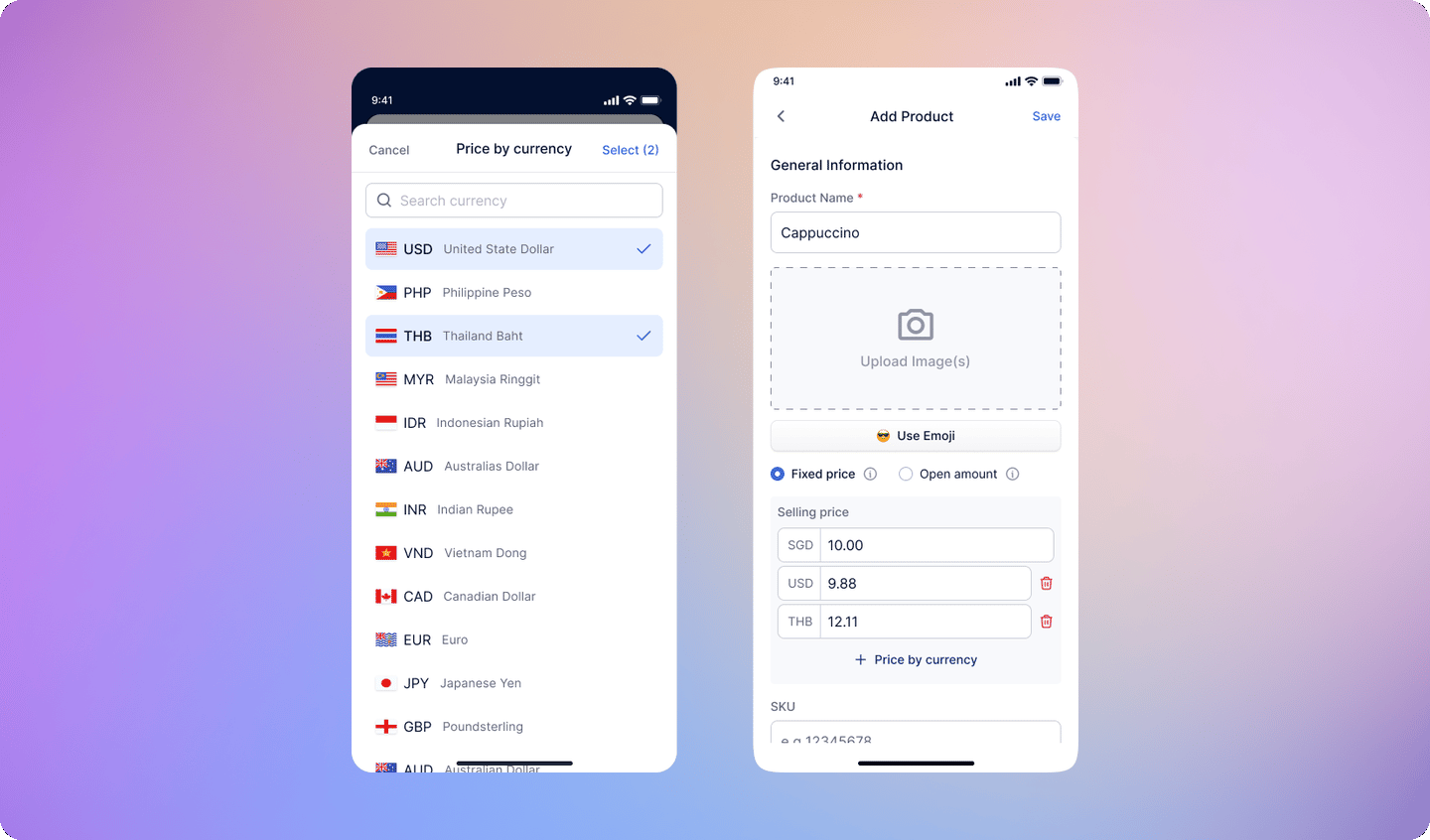
Multi-Currency Products lets you go beyond your local currency by pricing the same product in multiple currencies. Each currency gets its own defined price. For example, a single item can be priced at:- SGD 3
- MYR 9
- PHP 140
Benefits at a glance
- Sell to overseas customers without currency confusion
- Customers pay in their local currency using local payment methods (PayNow, QR Ph, Touch ‘n Go, QRIS, and more)
- You set the price — no surprises from exchange rate fluctuations
- Works across popup events, cross-border markets, and multi-country operations
If you haven’t set a price for a particular currency, HitPay will fall back to automatic real-time conversion from your home currency.
Use Case
This feature is especially valuable for popup merchants selling at cross-border events. Example: A Malaysian merchant selling at a Singapore popup sets prices in both SGD and MYR. Filipino, Indonesian, and Thai customers can each pay in their own currency, while the merchant receives their payout in MYR.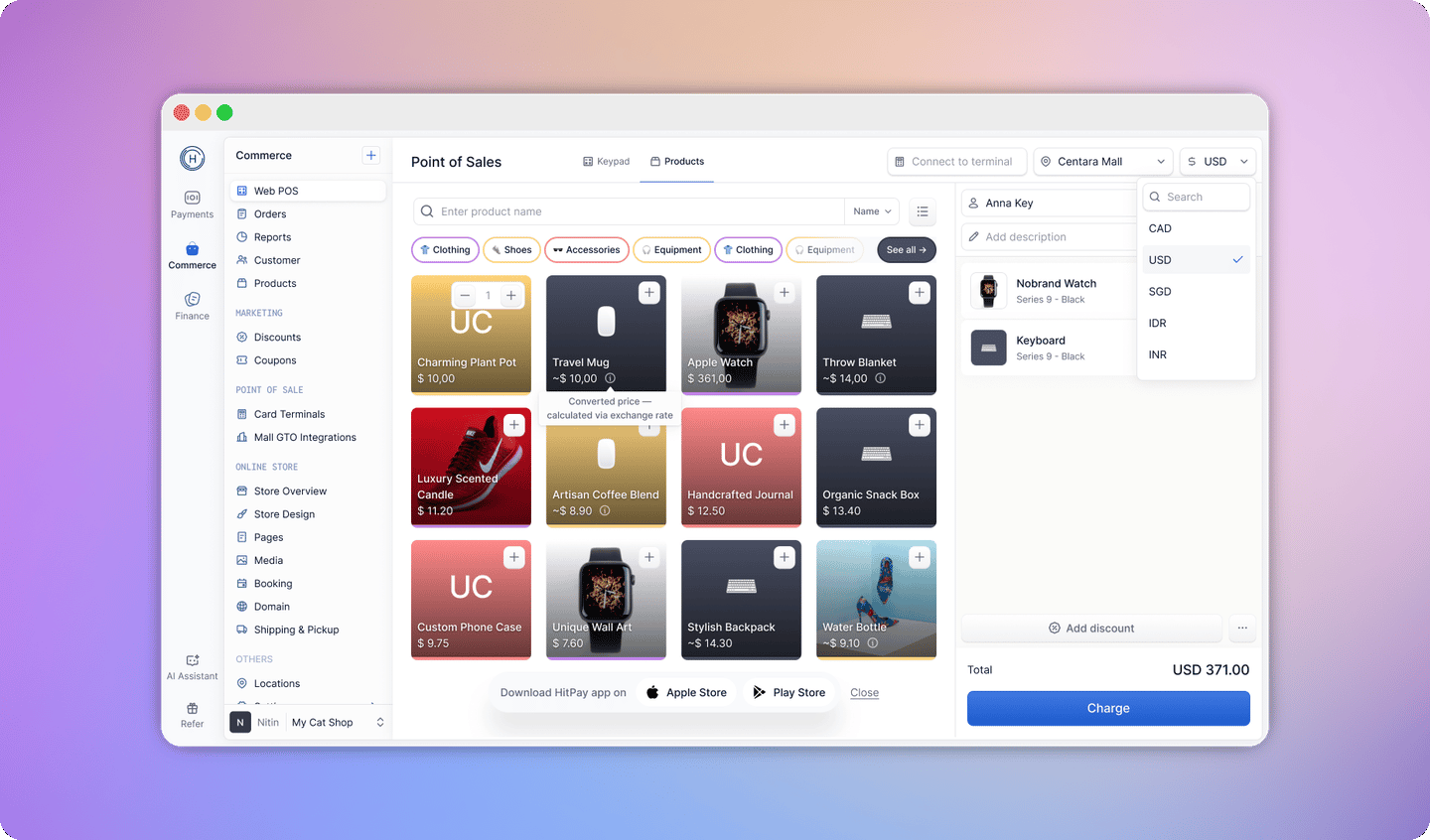
- Multi-currency prices are manually set — they do not automatically update when exchange rates change.
- If a price is set for a currency, that fixed amount is used at checkout.
- If no price is set for a currency, HitPay falls back to automatic conversion.
How to set multi-currency product prices
- Web Dashboard
- Mobile App
Individual Product
- From the Web Dashboard, go to Point of Sale > Products.
- Click on an existing product or create a new one.
- Under the Pricing section, click Add a price by currency.
- Select the currency and enter the price for that currency.
- Repeat for each additional currency you want to support.
- Click Save when done.
Product with Variants
- From the Web Dashboard, go to Point of Sale > Products.
- Open a product that has variants (e.g., sizes or colors).
- Select a specific variant.
- Under the Pricing section for that variant, click Add a price by currency.
- Enter the price for each currency you want to support.
- Repeat for all variants as needed.
- Click Save when done.
Each variant can have its own set of currency prices independently.
How to checkout with a multi-currency product
First, set your checkout currency to the customer’s currency. Product prices will then be displayed in that currency.- Web Dashboard
- Mobile App
- Go to Commerce > Web POS.
- Select the checkout currency and change it to the customer’s currency.
- Navigate to Products — prices will be shown in the selected currency.
- Add the product(s) to the cart and proceed to checkout as usual.
How the displayed price is determined
When a checkout currency is selected, HitPay resolves the product price in the following order:- Manual price — if you’ve set a price for that currency on the product, that amount is used.
- Store-configured exchange rate — if no manual price is set, HitPay applies the exchange rate configured in your store settings. See Multi-Currency for more details.
- Live market exchange rate — if no store rate is configured, HitPay falls back to the mid-market exchange rate, which is refreshed every 6 hours.
FAQs
Can I bulk import multi-currency prices?
Can I bulk import multi-currency prices?
Bulk import of multi-currency prices is not supported yet. You will need to set currency-specific prices individually on each product or variant through the Web Dashboard or mobile app.
Do multi-currency prices update automatically when exchange rates change?
Do multi-currency prices update automatically when exchange rates change?
No. Once you set a price for a specific currency, it stays fixed until you manually update it. If you haven’t set a price for a currency, HitPay will use automatic real-time conversion at checkout.
Which currencies can I add prices for?
Which currencies can I add prices for?
You can add prices for any currency that is supported by HitPay Borderless QR in your market. Refer to the Borderless QR supported countries and payment methods table for the full list.
What happens if I don't set a price for a customer's currency?
What happens if I don't set a price for a customer's currency?
HitPay will automatically convert your home currency price to the customer’s currency using real-time exchange rates — the same as standard Borderless QR behavior.
Does this work for products with variants?
Does this work for products with variants?
Yes. You can set multi-currency prices at the variant level, so each size, color, or configuration can have its own currency-specific price.